
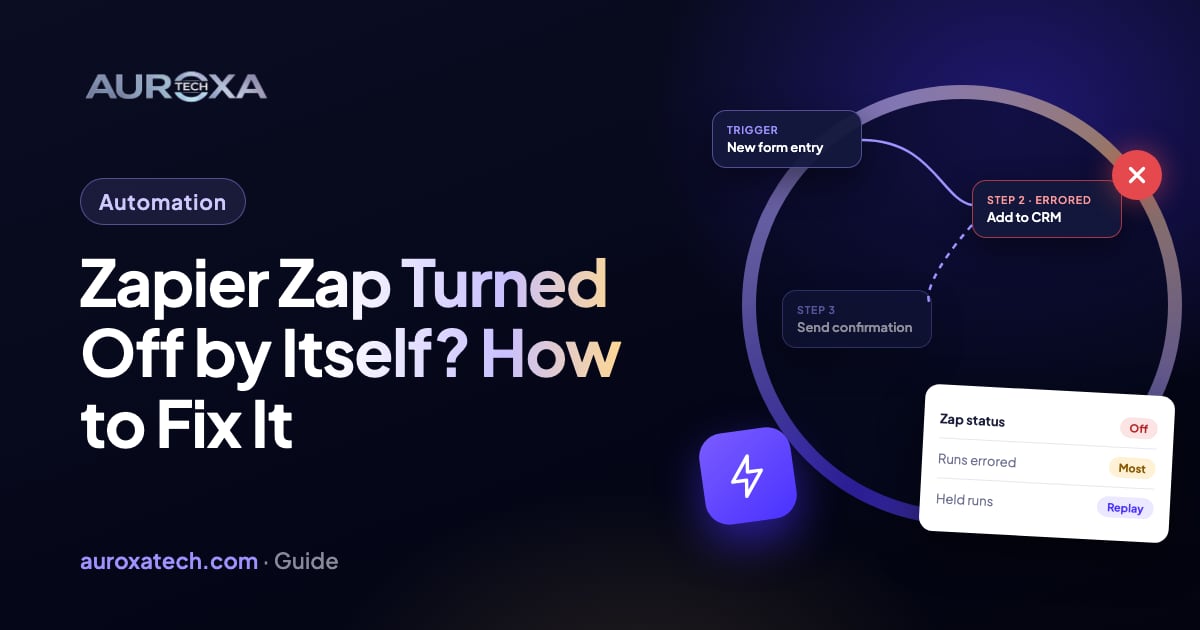
Zapier turns a Zap off on its own when it errors in 95% of its runs over the past 7 days and has run more than 20 times in that period, and it holds runs (without turning the Zap off) when the account hits its task limit, loses a paid feature or has a disconnected app. Outages, on the app’s side or Zapier’s, can switch Zaps off too. The order that works: read the email Zapier sent, open Zap history and find the step that errored, check the status page, reconnect the app or fix the plan issue, fix the step, test, turn the Zap back on, then replay the runs that failed or were held. Replay can’t bring back runs older than your history, and the error ratio override only hides the problem.
Why Zapier turns a Zap off
A Zap that turns itself off is one of the most common threads on the Zapier Community, and it usually surfaces the same way: a lead never reached the CRM, a customer never got a confirmation, and someone opened Zapier to find the switch off. Zapier’s help page on why a Zap is not running says it turns off a Zap that “errors 95% of the time it runs” and “has run more than 20 times in the past 7 days.” The developer documentation describes the same rule from the other side: when 95% of a Zap’s runs in the last 7 days end as Stopped or Errored, the Zap is turned off and won’t run again until someone turns it back on.
That rule is a safety measure, and it means the switch is rarely the real problem. Something in one step started failing, and the Zap kept failing until Zapier stopped it. The run-level message “Task was stopped because its Zap was turned off” has its own help article, which lists three causes: you turned the Zap off while it was running, it errored too many times and was turned off mid-run, or there was an outage at the app or at Zapier.
Outages are not hypothetical. On 6 and 7 May 2026, Zapier’s status page logged an incident in which some users received a “High Error Ratio” email that didn’t match how their Zap was performing, and some Zaps were paused as a result. Zapier fixed it and told affected users to turn the Zaps back on. There is also a second family of problems that looks similar but works differently: runs that are held rather than errored, because of the plan, the task limit or a disconnected app. Those Zaps may still show as on while nothing happens.
| What you see | Likely cause | Fix (step n) |
|---|---|---|
| Email titled “High Error Ratio”, Zap now off | One step failed on almost every run for days | Find and fix the failing step (steps 2 and 5) |
| Runs marked Held, Zap still on | Task limit reached, premium feature, ended trial or expired payment | Fix the plan or billing issue, then replay (steps 4 and 7) |
| Warning icon on a step, “Reconnect” in the Account tab | The app login expired or its password changed | Reconnect the app account (step 4) |
| Zap won’t stay on after you switch it on | Incomplete step, plan limit, outdated app version or publish approvals | Fix the step or the plan, then test (steps 5 and 6) |
| Many Zaps off at once, no errors in history | Outage at Zapier or at the app | Check the status page, then turn them back on (step 3) |
| Zap off, nothing in Zap history | The errors are older than the history you can see, or the Zap was blocked from publishing | Turn on error notifications and watch the next runs (steps 2 and 8) |
Before you change anything
- Keep the email. If Zapier emailed you, it names the Zap and often the reason. On Team and Enterprise plans the help page says the owner gets that email before the Zap is turned off, with a 24-hour (Team) or 72-hour (Enterprise) grace period.
- Don’t just switch it back on. If the step that failed is still broken, the Zap will error again and Zapier will turn it off again. Several community threads describe exactly that loop.
- Don’t delete and rebuild the Zap. Rebuilding loses the run history you need to find the cause, and replay only works on the original Zap.
- Write down when it last worked. The date the leads or confirmations stopped tells you which runs to look at and which ones to replay later.
- Check who changed what. A new password on the CRM, a renamed spreadsheet column or a removed form field are the usual triggers, and they are often made by someone who never opens Zapier.
How to fix it, step by step
Step 1: Read the notification
Search your inbox for emails from Zapier around the date the Zap stopped. A “High Error Ratio” email means the error rule above. A billing or plan email points to held runs instead. If there is no email at all, check your notification settings in Zapier, because the developer docs say users are emailed according to those settings.
Step 2: Open Zap history and find the failing step
Open Zap history, filter to the Zap and look at the runs marked Errored, Stopped or Held. Open one and expand each step: the failing step shows the data that went in, the response that came back and the error message. That message is what you fix. In one community thread from February 2025, Zapier staff traced a Zap that kept switching off to a 403 error on the Constant Contact step, which means the connected account lacked permission to add contacts.
If history is empty, the errors may simply be too old to see. In a 2021 thread about a “high error ratio” shutdown, Zapier’s community manager said the errors had happened months earlier and that Zap history keeps about a month of run data (community answer, not a documented limit).
Step 3: Rule out an outage
If several unrelated Zaps went off at the same time, check status.zapier.com first, then search for an outage at the app the failing step uses. Zapier’s own help page lists this as a step. When an outage was the cause, the fix is to turn the Zaps back on once it is resolved and replay the runs that failed during it.
Step 4: Reconnect apps and check the plan
Zapier’s page on Zaps that won’t turn on says a disconnected app account shows a warning icon in the step’s Account tab; open the three-dot menu next to the connection and choose Reconnect, or manage it from My apps. An expired login is the usual reason runs start failing after months of working, so reconnect even if the test looks fine.
Then check the plan. The held-runs article lists the causes of a held run: the task limit for the billing cycle, a premium app or feature your plan doesn’t include, expired payment details, a downgrade from a Team plan, an ended trial, an Enterprise app policy, more than 100 steps, or flood protection when over 100 runs arrive at once. On a free plan you also can’t keep on a Zap that uses a premium app or has more than one action step.
Step 5: Fix the step that failed
Fix the cause the error names. Common ones: a required field that now arrives empty because a form field was renamed, a spreadsheet column that moved, a CRM field that changed type, or an account that lost permission. If the app step is old, open it and see whether Zapier offers a newer version of the trigger or action. In a June 2025 thread where a Zap switched off the moment it was turned on, Zapier staff suggested updating the Airtable trigger to the latest app version with a fresh connection (the thread doesn’t say whether it worked).
Step 6: Test, then turn the Zap on
Test the trigger and each action in the editor with real sample data, then publish and turn the Zap on. Watch the next few live runs in Zap history. If the Zap goes off again straight away with no errors, look at the checklist from the turn-on article again: incomplete steps, plan restrictions and, on Enterprise accounts, publish approvals that need an admin.
Step 7: Replay the runs you missed
Zapier’s replay article lets you select errored or held runs in Zap history or in the editor’s runs sidebar and replay them. The rules matter: the Zap must be on, changing the trigger app or event makes old runs impossible to replay, Free plans can replay only errored runs, and held runs need a paid plan. A replayed entire run counts as a new run, so steps that already succeeded run again and count toward your tasks. That can create duplicates, such as a second welcome email, so for runs that half-succeeded, replay only the failed step or check the record first.
Step 8: Set up an alert so it can’t happen silently
Turn on error notifications for the account and make sure they go to a mailbox someone reads. For important Zaps, a community best answer suggests a small Zap built with the Zapier Manager app that alerts you when another Zap turns off. On Professional plans and above, autoreplay can retry errored runs for you. Add a weekly look at Zap history to someone’s routine; five minutes there is cheaper than a week of lost leads.
About the error ratio override
On Professional, Team and Enterprise plans, the Zap editor’s advanced settings have an “Error ratio override” with two options: “Turn off if errors occur (recommended)”, the default, and “Keep running if errors occur”. The help page says that with the override on, the Zap never enters a grace period. It keeps a Zap on, but it doesn’t make the failing step work: the runs still error, the data still doesn’t arrive, and now nothing switches off to tell you. Use it only for a Zap where some failures are expected and harmless, and pair it with error notifications.
What these steps can’t do
- They can’t recover runs that are no longer in Zap history. If the errors are older than the history you can see, the data those runs carried has to come from the source app, for example the form’s own entries.
- They can’t fix a limit on the other app’s side. Some apps need a paid subscription for their API, and Zapier says so on the turn-on page.
- They can’t make a held run free. Replaying held runs after an upgrade or reset uses tasks like any other run.
- They can’t tell you why Zapier switched off a Zap with no errors and no email. If it keeps happening after these steps, contact Zapier Support with the Zap link; several community threads end there.
If a Zap carries leads, payments or bookings, the long-term fix is design: fewer steps per Zap, a filter that stops bad data before it reaches the app that rejects it, and an alert when something fails. The n8n vs Make vs Zapier guide covers when a workflow has outgrown Zapier.
Our workflow automation service builds and maintains Zapier, Make and n8n workflows with error alerts and logs on every step. If a Zap that moves your leads keeps switching off, send us the Zap’s purpose and the last error message.
Frequently asked questions
Why did Zapier turn off my Zap?
Zapier’s help page says it turns off a Zap that errors in 95% of its runs and has run more than 20 times in the past 7 days. Outages at Zapier or at an app can also switch Zaps off. The switch is the symptom; one step in the Zap is failing.
Will I lose the data from runs while the Zap was off?
Runs that errored or were held stay in Zap history and can usually be replayed once the Zap is fixed and on again. Zapier says held runs keep their trigger data. Anything older than your history, or new data that arrived while the Zap was off and never triggered a run, has to come from the source app.
Should I turn on the error ratio override?
Only for a Zap where some failures are expected and harmless. The override keeps the Zap on, but the failing runs still fail and Zapier no longer stops the Zap to warn you. It is available on Professional, Team and Enterprise plans.
My Zap shows as on but nothing happens. Is that the same problem?
No. That is usually a held run: the account hit its task limit, the plan doesn’t include a feature the Zap uses, a trial ended, payment details expired or an app is disconnected. Zap history marks those runs as Held. Fix the cause, then replay them.
Does replaying runs cost tasks?
Yes. Zapier says a replayed entire run counts as a new run and successful steps count toward task usage again. Replaying a run whose first steps already worked can also repeat those actions, so check for duplicates first.
Sources
- Zapier Help Center: Zap is not running (95% error rule, held runs, error ratio override)
- Zapier Help Center: Error “Task was stopped because its Zap was turned off”
- Zapier Help Center: How to troubleshoot held Zap or step runs
- Zapier Help Center: Can’t turn on or publish Zap
- Zapier Help Center: Replay Zap runs
- Zapier developer docs: Error handling
- Zapier Status: Zap error notifications incident (May 2026)
- Zapier Community (community): Why does Zapier turn off my Zap unexpectedly? (Feb 2025)
- Zapier Community (community): Mailchimp task stopped due to Zap being turned off (Jun 2025)
- Zapier Community (community): Zap was stopped due to high error ratio (2021)
- Zapier Community (community): Zap turns off by itself (2020)