
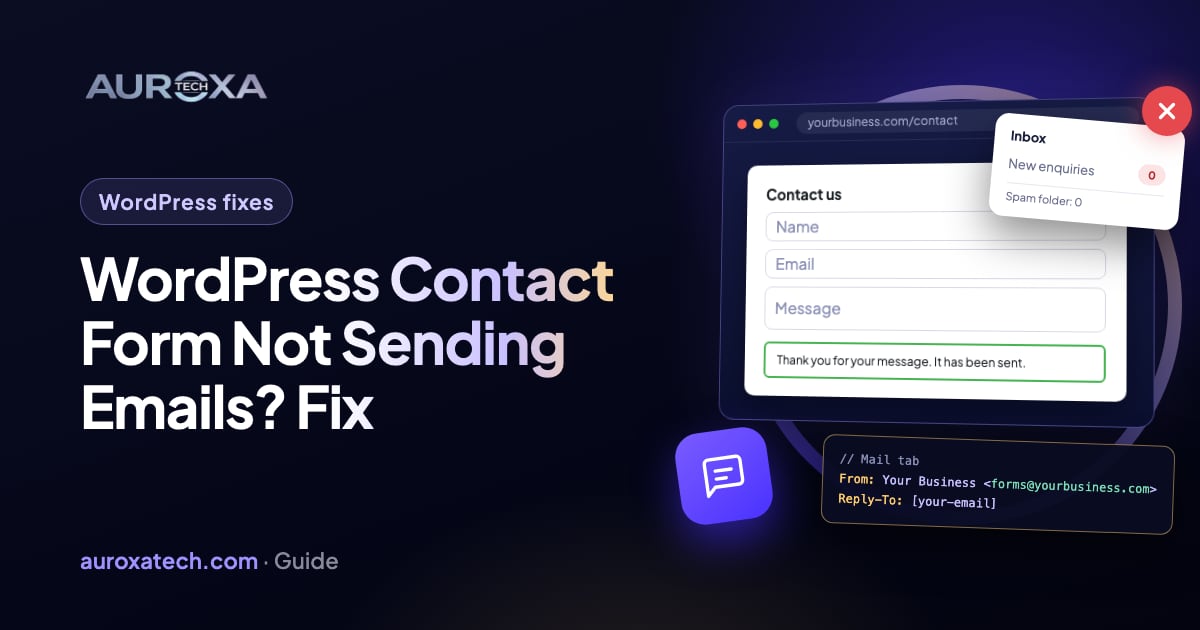
When a WordPress contact form shows “Your message has been sent” but nothing reaches your inbox, the form did its job and the email was lost afterwards: it went to spam, the mail server refused it, the From address claimed a domain your server isn’t allowed to send for, or the message was delivered to a mailbox on the wrong server. Work through it in this order: check what the form stored, test whether WordPress can send email at all, fix the To and From addresses, then send through an authenticated SMTP or API service with SPF and DKIM set up for your domain. Each step below says what the result tells you.
Why the form says “sent” when nothing arrives
A contact form plugin doesn’t deliver email. It hands the message to WordPress, WordPress hands it to the server’s mail program, and from there it travels through spam filters to your inbox. The form only sees the first hand-off. The Contact Form 7 FAQ says the green-border “It has been sent” message means the PHP function for sending mail completed successfully, and that if you don’t receive it the mail was most likely lost after that point, often by a spam filter. WordPress’s own wp_mail() function says the same in its source: a true return value does not automatically mean that the user received the email.
Two defaults make the loss more likely. Unless a plugin changes it, WordPress sends from wordpress@yourdomain.com with the name “WordPress”, an address that usually doesn’t exist. And most shared hosts send through the server’s basic mail program with no proof that the server may send for your domain. Since February 2024, Google’s sender guidelines require every sender to Gmail to authenticate with SPF or DKIM and to keep spam complaints below 0.3%. A form email with no authentication from an address nobody recognises is exactly what those rules filter.
The community threads on this problem come back to the same handful of causes. Answers on Quora blame a mistyped To address, no SMTP set up, a spam-listed address or a full mailbox. A Zoho community thread describes a site on GoDaddy where every address in the To field received the form except the two on the site’s own domain. A WordPress.org thread describes forms that “just kept spinning” after an update, then reported success with no email. Match what you see to the table:
| What you see | Likely cause | Fix |
|---|---|---|
| Green “sent” message, nothing in the inbox or spam | The email left the server and a filter dropped it, or the To address is wrong | Steps 1–4, then SMTP in step 5 |
| Green “sent” message, email in spam | Unknown From address, no SPF or DKIM, or From set to the visitor’s address | Steps 4 and 5 |
| Emails reach outside addresses but not addresses on your own domain | The server thinks it hosts your domain’s mail and delivers locally | Step 6 |
| Red-border error (Contact Form 7) or “There was an error trying to send your message” | wp_mail() failed: mail program missing, port blocked or server down | Step 7, then SMTP |
| Orange-border error | A spam-protection module blocked the submission | Step 8 |
| Spinner, then nothing | The request never completed: JavaScript conflict, REST API blocked or a security rule | Step 9 |
| It worked for years and stopped | A host, plugin or mail-provider change: port closed, policy tightened, SMTP password expired | Step 3 first, then 5 |
Before you change anything
- Find the enquiries you already missed. Some form plugins store every submission in the dashboard. Contact Form 7 doesn’t unless the Flamingo add-on is installed. If entries exist, reply to them today; the email problem is now the smaller one.
- Search your spam and “All mail” folders for the form’s subject line and for “WordPress”. Filters are the most common place the email ends up.
- Write down what changed recently: a WordPress or plugin update, a new host, a new email provider, a new domain, a security or caching plugin.
- Get the logins ready: WordPress admin, hosting control panel, DNS, and the admin of your email provider (Google Workspace, Microsoft 365 or the host’s mail).
How to fix it, step by step
Step 1: Send two test submissions
Fill in the form once with your business address and once with a personal Gmail or Outlook address in the To field (or a second recipient). Note the message the form shows and the time. If the personal address receives the email and the business one doesn’t, the problem is on the receiving side (steps 4 and 6). If neither arrives, keep going.
Step 2: Check the To field for typos
Open the form’s mail settings (in Contact Form 7, the Mail tab; in WPForms, Settings → Notifications) and read the To address letter by letter. A one-character typo produces the same green “sent” message as a working form, and it is the first thing experienced answerers on the Quora thread ask about. Check also that the address isn’t an old employee’s mailbox or a mailbox that is full.
Step 3: Test whether WordPress can send email at all
Install a small test plugin such as Check Email, go to Tools → Check Email, send a test to your personal address and check spam. Kinsta’s guide uses this split: if the test arrives, the server can send mail and the problem is in the form’s configuration; if it doesn’t, the server itself can’t send and you need step 5 regardless of the form. If you already use WP Mail SMTP, its Tools → Email Test does the same job.
Step 4: Fix the From address
The From address must be an address on your own domain, such as forms@yourbusiness.com, not the visitor’s address and not a Gmail address. Many old tutorials put the visitor’s email in From so you can hit Reply; that makes your server claim to send on behalf of gmail.com or outlook.com, which fails those providers’ authentication checks and is why Kinsta describes such emails as being flagged as spoofed. Put the visitor’s address in a Reply-To header instead. In Contact Form 7 that is Reply-To: [your-email] in the Additional headers box, and the plugin warns you with “Sender email address does not belong to the site domain” when From is wrong. Then make sure the mailbox you send from exists, so bounces and replies have somewhere to go.
Step 5: Send through an authenticated SMTP or API service
The durable fix is to stop using the server’s mail program and send through a service that authenticates your domain. Install WP Mail SMTP (or the equivalent in your form plugin) and connect it to your email provider or a transactional service such as Brevo, Mailgun, SendGrid, Amazon SES or SendLayer. Google Workspace and Microsoft 365 work too for a low-volume contact form. WPBeginner’s walkthrough covers the set-up; the parts that matter are:
- Add the provider’s DNS records for your domain: an SPF entry, a DKIM key and usually a verification record. Your domain may have only one SPF record; RFC 7208 says more than one produces a permanent error, so edit the existing record rather than adding a second one.
- Use the same From address in the plugin that you authorised at the provider, and turn on “Force From Email” so other plugins can’t override it.
- If your host blocks outbound port 25, as Kinsta and several others do, use port 587 or 465, or a provider that sends over HTTPS (an API mailer), which WP Mail SMTP recommends because it also avoids firewall rules.
- Send the plugin’s test email, then submit the form again from step 1.
Step 6: When only your own domain’s addresses go missing
If the form reaches Gmail but not info@yourbusiness.com, and your mailboxes live at Google Workspace, Microsoft 365 or another provider, the hosting server is usually delivering the mail to itself. In cPanel this is the Email Routing setting: cPanel’s documentation says the Local Mail Exchanger option makes the server always accept mail for the domain, while Remote Mail Exchanger makes it hand the mail to your domain’s MX records instead. Set it to Remote (or ask the host to), and the same-domain copies will start arriving. Other control panels have an equivalent switch. This is the likely explanation for the GoDaddy case in the Zoho thread, where every outside address got the form and the two on the site’s domain did not, though the thread never confirms it.
Step 7: A red-border error or “error trying to send your message”
The Contact Form 7 FAQ is specific: a red border means the plugin called wp_mail() and it failed. WordPress fires a wp_mail_failed action with the error, so a logging plugin (WP Mail SMTP’s log, or Check Email’s) will usually show the reason: no mail program installed, a refused connection, or a rejected sender. If the server’s own mail is broken, ask the host to read the error log, and move to SMTP in step 5, which sidesteps the server’s mail program entirely.
Step 8: An orange-border error
Orange means one of the form’s spam modules (Akismet, reCAPTCHA or the disallowed-words list) blocked the submission, and the email was never attempted. Turn on the plugin’s spam logging to see which module fired. If real customers are being blocked, loosen that one module rather than removing all protection, and check the disallowed list for words that appear in normal enquiries.
Step 9: A spinner and no message
When the button spins and nothing happens, the browser never got an answer from your site, so no email was attempted. Open the browser’s developer console on the contact page and submit again: a red error pointing to /wp-json/ usually means the REST API is blocked by a security plugin, a firewall or a rule in .htaccess; a JavaScript error usually names the conflicting plugin or theme script. Clear the cache after any change, because cached pages carry old scripts.
Step 10: Make sure it can’t happen silently again
- Keep a copy of every submission in WordPress: Flamingo for Contact Form 7, or a form plugin with stored entries. Leads then survive an email outage.
- Submit the form yourself once a month and after every update or host change.
- Add a second recipient or a Bcc to another mailbox, so one filter can’t hide every enquiry.
- Note the SMTP provider’s password or API key expiry and who owns the account.
What these steps can’t do
Authentication gets a contact form email treated as legitimate; it doesn’t guarantee the inbox. A brand-new domain has no sending history, a domain that has sent marketing mail to bought lists may be on a blocklist, and a recipient’s own company filter can still quarantine it. Keep the contact form on its own low-volume sending address, and send newsletters from a separate service so their reputation doesn’t touch your enquiries.
If the form is still losing enquiries after step 5, our website and app fixes service starts by reading the mail logs rather than guessing. Get in touch with the host’s name and the form plugin you use.
Frequently asked questions
Why does my contact form say “sent” when I never get the email?
The “sent” message only confirms that WordPress handed the email to the server’s mail program. Anything after that, such as a spam filter, a rejected sender or delivery to the wrong server, happens out of the form’s sight. Test whether the site can send at all, then fix the From address and move to SMTP.
Should the From address be the visitor’s email?
No. Use an address on your own domain and put the visitor’s address in Reply-To. A From address at gmail.com or outlook.com sent from your server fails those providers’ authentication checks and is treated as spoofed.
Do I need an SMTP plugin for a contact form?
Usually, yes. Most shared hosts send through a basic mail program with no SPF or DKIM authentication, and Gmail has required authentication from all senders since February 2024. An SMTP or API mailer connected to your email provider fixes that.
Why do form emails reach Gmail but not my own company address?
When your mailboxes live at Google Workspace or Microsoft 365 but the hosting server is set to handle your domain’s mail locally, the server delivers the email to itself. In cPanel, set Email Routing to Remote Mail Exchanger.
Where did the enquiries I missed go?
If your form plugin stores entries (or Flamingo is installed for Contact Form 7), they are in the WordPress dashboard. If not, they are gone, which is why step 10 adds storage and a monthly test.
Sources
- Contact Form 7 FAQ: green, red and orange border messages
- WordPress developer reference: wp_mail() (return value, default From address, wp_mail_failed)
- Google Workspace Admin Help: Email sender guidelines
- RFC 7208: Sender Policy Framework, section 3.2 (one record per domain)
- Kinsta: How to fix the WordPress not sending emails issue
- WP Mail SMTP: Why is Contact Form 7 not sending emails?
- WPBeginner: How to fix WordPress not sending email
- cPanel documentation: Email Routing
- Quora (community answers): Why is my WordPress contact form not sending emails?
- Zoho community (user report): Contact Form 7 emails not being received on same-domain addresses
- WordPress.org support (user report): contact form not sending