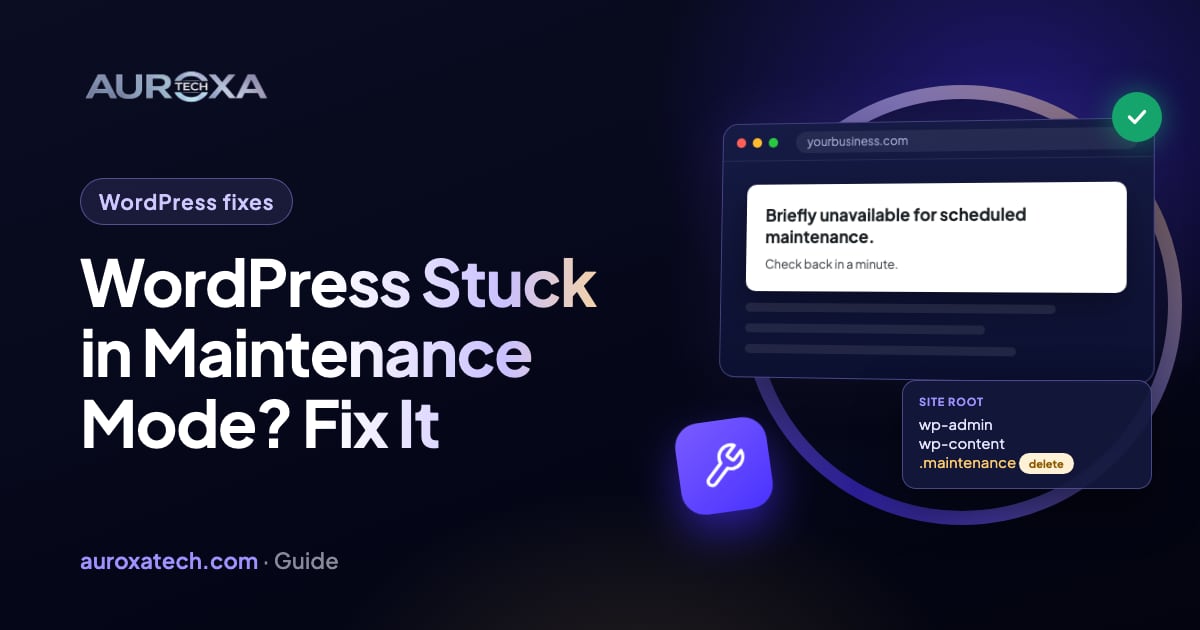
WordPress shows “Briefly unavailable for scheduled maintenance. Check back in a minute.” while a hidden .maintenance file sits in the site’s root folder. WordPress creates the file when an update starts and normally removes it when the update ends, so an interrupted or failed update can leave it behind. Back up, delete .maintenance over SFTP or your host’s file manager, run the interrupted updates again, then check the plugin or theme that stalled. If the message stays, look for a maintenance plugin, a custom maintenance.php or a cached page.
Why does WordPress say “Briefly unavailable for scheduled maintenance”?
During an update, WordPress puts the site into maintenance mode so visitors don’t load half-updated code. The WordPress troubleshooting FAQ explains how: WordPress places a file named .maintenance in the base folder of your site, the folder that contains wp-admin. While that file exists, visitors see “Briefly unavailable for scheduled maintenance. Check back in a minute.” The file normally disappears when the update ends. The message stays when something stops the update before WordPress can remove it.
WordPress’s own code documentation adds three details. The file holds only a timestamp, the time it was created (WP_Upgrader::maintenance_mode). The page is sent with an HTTP 503 status and a Retry-After header of 600 seconds, which tells browsers and crawlers the outage is temporary (wp_maintenance()). And WordPress stops treating the file as maintenance mode once it is 10 minutes old (wp_is_maintenance_mode()). So a site that has been down for much longer than 10 minutes suggests that something keeps creating the file, or that the message comes from somewhere else.
Match what you see to the likely cause:
| Situation | What you see | What to do |
|---|---|---|
| An update was interrupted: closed tab, timeout or a server restart | The message right after an update started from the dashboard | Wait 10 minutes, then delete .maintenance (steps 1–2) |
| Many updates ran at once, or one stalled | The message, then a white screen or a critical error | Delete .maintenance, then update one item at a time (steps 2–4) |
| Automatic updates keep failing on the same item | The site goes down again and again | Find the plugin or theme that fails (step 4) |
| A maintenance plugin or a custom maintenance.php | A different message, or the message stays although .maintenance is gone | Check wp-content/maintenance.php and your plugins (step 5) |
| A cache or CDN keeps serving the 503 page | Fixed in the admin, but visitors still see the message | Clear every cache layer (step 6) |
| Low memory or a time limit on the server | Updates stop partway, sometimes with a memory error | Read the memory limit guide |
Community threads show the same pattern. In one WordPress.org support thread, a site owner was stuck on a maintenance message that blocked every plugin update. Replies suggested deleting the .maintenance file, taking a backup and deactivating plugins one at a time, and the hosting provider traced the problem to a single plugin: once it was deactivated, the updates finished. A forum thread is a user report, not an official statement.
Before you change anything
- Back up the files and the database, and keep a copy off the server. Deleting .maintenance is safe on its own, but an interrupted update can leave plugin or theme files half-written, and a restore point protects you if the next step shows an error.
- Give a running update 10 minutes. A bulk update can take a while, and WordPress itself stops showing the page once the file is 10 minutes old.
- Check you are not looking at a cached page. Open the site in a private window, or on your phone using mobile data.
- Note what was updating: WordPress core, a plugin or a theme, and which ones. You will run those updates again.
How to get your site back, step by step
Step 1: Open the site’s files
Connect over SFTP or open your host’s File Manager. Go to the folder that holds the wp-admin folder and wp-config.php. On many hosts that is public_html or www. If WordPress was installed in a subfolder, use that subfolder.
Step 2: Delete the .maintenance file
Files that start with a dot are hidden, so switch on “Show hidden files” in your SFTP client or File Manager. Delete .maintenance, then reload the site in a private window. The WordPress FAQ gives the same fix and adds that the automatic upgrade should be run again, in case it failed. If you can’t find the file, go to step 5.
Step 3: Run the interrupted updates again
Log in at /wp-admin/, open Dashboard > Updates and update what was interrupted, one item at a time, starting with WordPress core if that was running. Check the site after each one, and don’t close the tab until each update says it has finished.
Step 4: Check what failed
If the site now shows a white screen or “There has been a critical error”, an update left a plugin or theme broken. Our guide to the WordPress critical error has the debug steps. If you can’t reach the dashboard, use the method from the WordPress FAQ: in wp-content, rename the plugins folder (for example to plugins.hold), log in, rename it back, then reactivate plugins one by one. If automatic updates keep sending the site into maintenance mode, the same plugin or theme is probably failing each time: deactivate it, update it by hand or replace it.
Step 5: Look for another source of the message
Still seeing a maintenance page when there is no .maintenance file? According to the wp_maintenance() reference, WordPress loads wp-content/maintenance.php instead of its default message when that file exists, so look for it. Also check whether a maintenance or coming-soon plugin is active, whether your host has its own maintenance switch, and whether the page is coming from a cache or CDN.
Step 6: Clear every cache
Purge the caching plugin, your host’s cache and any CDN, then test in a private window. A cached 503 page can outlive the real problem.
Step 7: Test the pages that earn money
- The home page and your main service or product pages.
- The contact form, booking form or checkout, with a test submission.
- The login page, and the dashboard.
- The response code of key pages: they should return 200, not 503. The URL Inspection tool in Search Console shows what Google gets.
Does maintenance mode hurt your Google rankings?
A short outage with a 503 is what WordPress intends: it signals that the problem is temporary. Google’s documentation on HTTP status codes says that when a site returns 503, Googlebot reduces its crawl rate in proportion to the number of URLs returning server errors, that URLs that persistently return a server error are eventually dropped from the index, and that once the site returns a 2xx status again the crawl rate rises gradually. The page doesn’t say how long “persistently” is, so don’t leave the site in maintenance mode for days. Get it back quickly, then confirm in Search Console that your key pages return 200.
How to avoid it next time
- Back up before every update, and keep one copy off the server.
- Update plugins in small batches rather than all at once, and keep the tab open until each one finishes.
- Try big updates on a staging copy first.
- Check the host’s memory limit and free disk space before you update.
- Keep a short list of who has SFTP and hosting access, so that someone can delete the file at 2 a.m. If that list is missing, our guide to getting back into your hosting shows the legitimate way.
If your site takes orders or bookings and you’d rather not edit its files yourself, our website and app fixes start with a backup and then find which update failed. Not sure what else is wrong? Request a free website audit.
Frequently asked questions
How long does WordPress stay in maintenance mode after an update?
Normally for the length of the update, often a minute or so. WordPress ignores a .maintenance file once it is 10 minutes old, so a site that stays on the message for much longer points to a stalled update that keeps retrying, a maintenance plugin, a custom maintenance.php or a cached page.
Is it safe to delete the .maintenance file?
Yes. It only contains the time it was created, and deleting it ends maintenance mode. It doesn’t repair a failed update, so run the update again and test the site. Take a backup first if you can.
Where is the .maintenance file?
In the folder that contains wp-admin, usually the same folder as wp-config.php. It is a hidden file, so turn on “Show hidden files” in your SFTP client or File Manager.
The .maintenance file is gone but the message stays. Why?
Look for wp-content/maintenance.php, a maintenance or coming-soon plugin, a switch in your hosting control panel, or a cached page. Clear every cache and test in a private window.
Does WordPress maintenance mode affect SEO?
A short 503 is the correct signal for a temporary outage. Google says URLs that persistently return server errors are eventually dropped from the index, so fix it quickly and check key pages in Search Console afterwards.
Sources
- WordPress.org: FAQ Troubleshooting (clearing the maintenance message, deactivating plugins)
- WordPress developer reference: wp_maintenance()
- WordPress developer reference: wp_is_maintenance_mode()
- WordPress developer reference: WP_Upgrader::maintenance_mode()
- Google Search Central: HTTP status codes, network and DNS errors
- WordPress.org support forum (community thread): Maintenance error, not able to update