
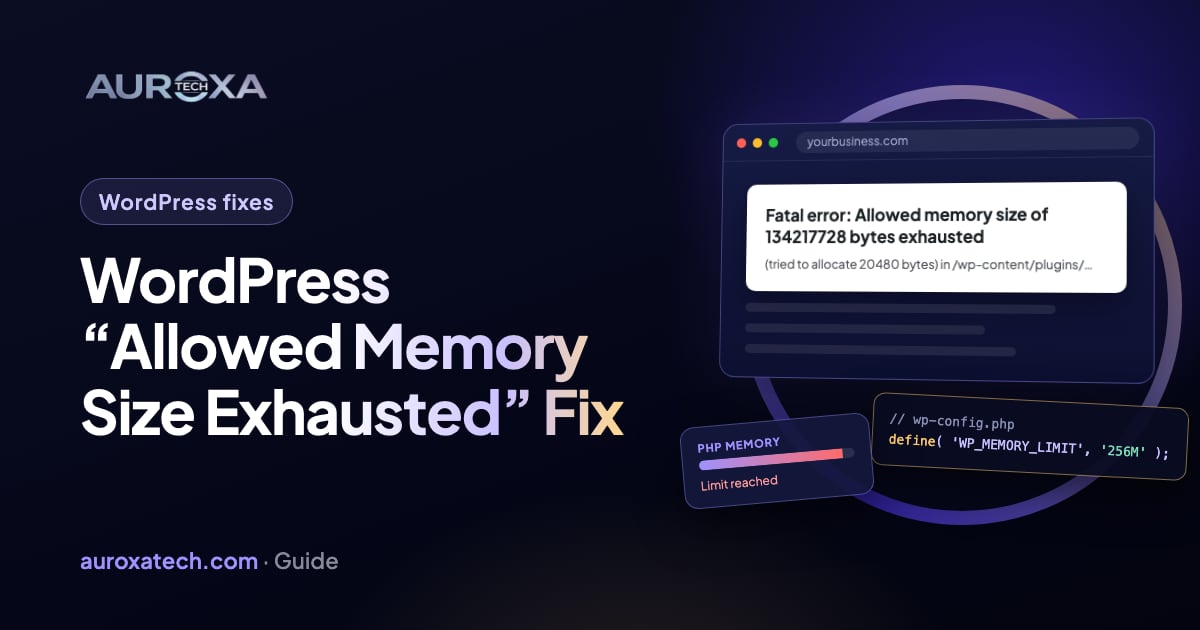
“Allowed memory size of … bytes exhausted” means a PHP script on your WordPress site needed more memory than the server’s limit allows, so it stopped. The number is the limit in bytes: 134217728 is 128 MB. Raise the limit in wp-config.php or your hosting panel, then use the file named in the message to find the plugin, theme or task that needs so much memory, because a higher limit can hide the real problem.
What does “Allowed memory size of … bytes exhausted” mean?
The full message usually looks like this: “Fatal error: Allowed memory size of 134217728 bytes exhausted (tried to allocate 20480 bytes) in /…/wp-content/plugins/…/file.php on line 251”. PHP, the language WordPress runs on, has a setting called memory_limit: the most memory one script may use. PHP’s manual says it exists to stop poorly written scripts from eating up all the memory on a server. When a script reaches it, PHP stops the script, and the page fails.
PHP’s limit and WordPress’s limits
Three settings decide how much memory your site gets:
| Setting | Where it is set | Default | What it controls |
|---|---|---|---|
| memory_limit (PHP) | php.ini, .user.ini or your hosting panel | 128M in PHP itself; your host may set another value | The limit for every PHP script on the site |
| WP_MEMORY_LIMIT | wp-config.php | 40M for a single site, 64M for multisite | What WordPress asks for on normal pages |
| WP_MAX_MEMORY_LIMIT | wp-config.php | 256M, or PHP’s limit if that is higher | What WordPress asks for in the admin, when processing images and when running scheduled tasks |
Two details matter. First, WordPress only ever raises PHP’s limit, never lowers it: if PHP already allows 128M, the 40M default changes nothing. Second, if your host doesn’t let PHP change its own limit, WordPress’s startup code simply uses the host’s value, and the wp-config.php settings have no effect.
What the numbers in the message mean
| Number in the message | Limit in plain terms | Often seen because |
|---|---|---|
| 41943040 bytes | 40 MB | It matches WordPress’s default for a single site |
| 67108864 bytes | 64 MB | It matches WordPress’s default for multisite |
| 134217728 bytes | 128 MB | It matches PHP’s own default |
| 268435456 bytes | 256 MB | It matches WordPress’s default for admin tasks |
| 536870912 bytes | 512 MB | It is well above the defaults, so the limit has been raised |
The “tried to allocate” number is the size of the last request that failed, not the total. A small number means memory was used up bit by bit. A number close to or bigger than the whole limit means one task asked for a huge amount at once, and raising the limit is unlikely to fix that.
Step 1: Find the plugin, theme or task named in the message
The end of the message names a file. A path through wp-content/plugins/ points to that plugin, and wp-content/themes/ to your theme. A path through wp-includes or wp-admin only tells you WordPress’s own code was running when memory ran out; the cause is usually whatever asked it to do the work.
Note when it happens, too: on every page, only in the admin, only when uploading images, or only during an import, a backup or a scan. That tells you which limit was hit and which task to look at.
If visitors see “There has been a critical error on this website” instead of the message, get the details from the recovery email or the debug log, as explained in our guide to the WordPress critical error. If you would rather have someone trace it, our WordPress and website error fixes start by finding the cause on a safe copy of the site.
Step 2: Raise the limit safely
Download a copy of wp-config.php before you change it. Then use whichever of these your host allows.
Option 1: wp-config.php
Open wp-config.php in the site’s main folder through your host’s file manager or SFTP. Above the line that says “That’s all, stop editing!”, add a line for the limit you need:
- define( 'WP_MEMORY_LIMIT', '256M' );
- define( 'WP_MAX_MEMORY_LIMIT', '512M' );
Use the first line if the error appears on normal pages and the second if it appears only in the admin or when uploading images. Always write the M: PHP reads a plain number as bytes, so 256 means 256 bytes, not 256 megabytes. WordPress’s wp-config.php guide notes that some hosts don’t allow the limit to be raised this way, and that in that case you should ask your host.
Option 2: your hosting panel, php.ini or .user.ini
If your hosting panel has a PHP settings page, change memory_limit there, for example to 256M. Otherwise the setting lives in php.ini, a server file that doesn’t come with WordPress; WordPress’s common errors page says to contact your host if you are unfamiliar with it.
Some hosts let you add a .user.ini file with the line memory_limit = 256M. PHP reads these files only when it runs as CGI or FastCGI; where it runs as an Apache module, .htaccess is used instead. PHP rereads .user.ini every 5 minutes by default, so a change may take that long to apply. Which one your site uses depends on how the host runs PHP, so ask them rather than guessing.
Check that the change worked
In the dashboard, go to Tools > Site Health > Info. The Server section shows the PHP memory limit, plus a separate line for admin screens when the two differ. If the number hasn’t changed, your host’s setting is winning. From PHP 8.5, hosts can also set a ceiling called max_memory_limit, and PHP caps any higher value with a warning.
Step 3: If the error comes back, find the real cause
WordPress’s own guide warns that raising the limit can hide the root of the issue until you add more plugins or features. If you still run out of memory after raising it, it says to debug the site properly. These are the usual suspects:
- A plugin that does heavy work at once, such as backups, security scans, page builders, imports or reports. If the message names it, test the site on a staging copy with that plugin off.
- A big import or export of products, orders or posts. Run it in smaller batches.
- Large images. WordPress raises its memory for image processing up to WP_MAX_MEMORY_LIMIT, and a very large photo can still go over it. Resize photos before you upload them.
- Data that has built up, such as huge log files or a bloated database. If the admin is slow as well, see our guide to autoloaded options.
- A bug that loops or asks for far too much, usually shown by a “tried to allocate” number larger than the whole limit.
To narrow it down, use the debug log from WordPress’s debugging guide, which records each error with its file. Debugging plugins show more about what runs on each page, such as Debug Bar, which that guide gives as an example, or Query Monitor. Use them on a staging copy, since the guide says debug tools aren’t meant for live sites. Site Health’s Info tab can also copy all of your site’s details to the clipboard, which gives your host or developer your settings in one go.
Four real cases from the WordPress.org support forum
These resolved threads are community threads, not official WordPress advice. Each shows a different reason for the same error.
- The limit was simply too low. In WordPress.org support forum: memory exhausted at 41943040 bytes, a site went down with a 40 MB limit, the same as WordPress’s single-site default. The owner raised memory_limit in php.ini to 512 MB and the site came back.
- A plugin bug after an update. In WordPress.org support forum: memory error after an events plugin update, the site hit a 256 MB limit inside an events calendar plugin, and turning other plugins off didn’t help. The plugin’s team confirmed a known bug; going back to the previous version was the workaround while they worked on a fix.
- A store’s data had grown. In WordPress.org support forum: WooCommerce memory error at 512 MB, a store logged memory errors while handling product and order data. The owner reported that cleaning up the database stopped them.
- Memory short on the server. In WordPress.org support forum: out of memory during a security scan, a security plugin ran out of memory while scanning. Its support team explained that this kind of error often comes from memory running short elsewhere on the server, more often on shared hosting, and that the host’s server logs are the place to check.
How is this related to the critical error screen?
Hitting the memory limit is one of the causes WordPress lists for “There has been a critical error on this website”, and raising it is one of its suggested fixes for a blank white screen. So the same problem can show up as the raw memory message, a white screen or the critical error screen, depending on the site’s settings. If you see the critical error screen, start with our critical error guide; if the email or log then shows “Allowed memory size … exhausted”, come back here.
When is it time to upgrade your hosting?
More memory costs money, so check the cheaper fixes first. An upgrade makes sense when:
- Your host won’t raise the limit to what the site needs, even after you’ve removed or replaced the heavy plugin.
- You are on shared hosting with a restricted limit. WordPress’s common errors page notes that memory limits are restricted on shared hosting, and that you may have to ask the host to raise yours.
- The site has genuinely grown, for example a store with many more products and orders, and the database cleanup is done.
An upgrade won’t fix a plugin that loops or asks for gigabytes at once. Fix or replace that plugin first, then size the hosting for what is left.
Not sure what is using up the memory? Request a free website audit for a reviewed summary of what to fix first. If the site is down now, describe what is broken and we’ll reply with the likely cause and the next step.
Frequently asked questions
How much memory does WordPress need?
There is no single number. By default WordPress asks for 40 MB on a single site and 64 MB on multisite for normal pages, and up to 256 MB for admin tasks, while PHP’s own default limit is 128 MB. What your site needs depends on its plugins, theme and data. Check the current values in Tools > Site Health > Info, and raise only the limit that the error actually hit.
Is raising the memory limit safe?
Usually, as a fix. The limit exists to stop badly written scripts from using up all the memory on a server, so raise it in steps, for example from 128M to 256M, rather than removing it. WordPress’s own guide warns that a higher limit can hide the root of the problem until it returns later, so treat the raise as the first step and still find the cause.
Why does the error come back after I raise it?
Either the change didn’t apply, or something keeps using more. Check Tools > Site Health > Info: if the limit hasn’t changed, your host’s setting is winning, the value is missing its M, or the file isn’t one your host reads. If the limit did change, a plugin, a large import or a bug is still growing to fill it, and the file named in the message is where to start.
Sources
- WordPress Advanced Administration Handbook: Editing wp-config.php (increasing memory allocated to PHP)
- WordPress Advanced Administration Handbook: Common WordPress errors (allowed memory size exhausted)
- WordPress Code Reference: wp_initial_constants() (default memory limits)
- WordPress Code Reference: wp_raise_memory_limit() (admin, image and cron memory)
- PHP Manual: Core php.ini directives (memory_limit)
- PHP Manual: .user.ini files
- WordPress.org Documentation: Site Health screen
- WordPress Code Reference: WP_Debug_Data::get_wp_server() (PHP memory limit in Site Health)
- WordPress Advanced Administration Handbook: Debugging in WordPress
- WordPress.org support forum (community thread): memory exhausted at 41943040 bytes
- WordPress.org support forum (community thread): memory error after an events plugin update
- WordPress.org support forum (community thread): WooCommerce memory error at 512 MB
- WordPress.org support forum (community thread): out of memory during a security scan