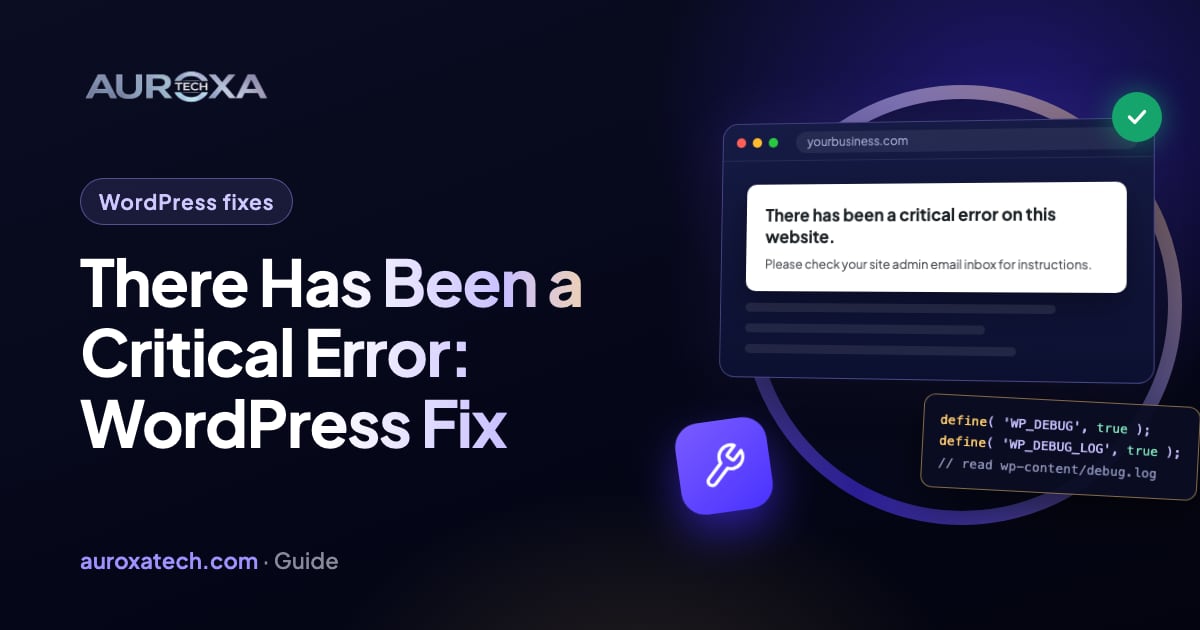
“There has been a critical error on this website” means some code on your site crashed and stopped WordPress loading, most often a plugin, a theme or a change of PHP version. Your posts and pages are very likely still safe. If WordPress emailed you a recovery link, use it to log in and switch off the plugin or theme it names; if not, find the faulty plugin in the error log and rename its folder, or ask your host for help.
Start here: which situation are you in?
Find the row that matches you and go straight to that section. Every path ends the same way: the plugin or theme that crashed is switched off and the site loads again.
| Your situation | What to do | Go to |
|---|---|---|
| WordPress emailed you about the error | Click the link in the email, log in and switch off what it names | Path A |
| No email, but you can log in to your hosting account | Read the error log, then rename the faulty plugin’s folder | Path B |
| No email, and you can’t get into the hosting account | Ask your host or developer, or recover the account first | Path C |
Before you start, write down what changed just before the error: a plugin or theme update, a new plugin, a WordPress update, or a message from your host about PHP. That change is usually the cause. Switch things off rather than deleting them: switching off is enough, and it is easy to undo.
What does “There has been a critical error on this website” mean?
WordPress shows this message when something on the site stops it from running as expected. Behind it is a fatal error: a piece of code in a plugin, a theme or WordPress itself that PHP, the language WordPress runs on, can’t run. So the page stops loading.
Since WordPress 5.2, WordPress catches these errors instead of leaving a blank white screen. It shows visitors the error message and emails the site’s admin address a secret link to recovery mode, where an administrator can log in and switch off whatever caused it.
WordPress’s list of common errors names the usual causes: plugins that conflict, a theme that isn’t compatible, a PHP version the site can’t run on, hitting the memory limit, or damaged WordPress files. Your posts, pages and settings live in the database, and the error stops the code that shows them; it doesn’t delete them.
If the site takes bookings or payments and you would rather not touch its files, our WordPress and website error fixes start with the same diagnosis, made on a safe copy of the site.
Path A: you got the email
Check the inbox of the site’s admin email address, including the spam folder. That address may belong to whoever built the site, or to an old mailbox nobody reads. Then:
- Click the recovery mode link in the email and log in as an administrator.
- Read the notice at the top of the dashboard. It names the plugin or theme that has been paused and shows the exact error.
- Deactivate that plugin, or switch to another theme. You lose that feature for now, but the site works again.
- Click the button in the admin bar to exit recovery mode, then open the site in a private browser window to check it as a visitor would.
Don’t stop once you can log in. Recovery mode pauses the faulty code only for you; every other visitor still sees the error until the plugin or theme is deactivated or fixed.
Path B: no email, but you can open the site’s files
You need your hosting account’s file manager or an SFTP app. Both show the site’s main folder, which holds a file called wp-config.php and a folder called wp-content, where plugins and themes live.
Step 1: Find the error in the log
Download a copy of wp-config.php as a backup, then edit it. Above the line that says “That’s all, stop editing!”, add these three lines, or change them if they are already there:
- define( 'WP_DEBUG', true );
- define( 'WP_DEBUG_LOG', true );
- define( 'WP_DEBUG_DISPLAY', false );
According to WordPress’s guide to debugging, this writes errors to a file called debug.log in the wp-content folder and keeps them off the pages visitors see. Reload the broken page, open debug.log and find the newest line that contains “Fatal error”. It names a file: a path through wp-content/plugins/ or wp-content/themes/ tells you which plugin or theme is at fault.
When you are done, set WP_DEBUG back to false and delete debug.log: the same guide says debug tools aren’t meant for live sites. If you would rather not edit wp-config.php, ask your host for the PHP error log instead.
Step 2: Switch off the plugin or theme at fault
If the log names one plugin, open wp-content/plugins and rename that plugin’s folder, for example by adding -off to the end. WordPress can’t find it, so it deactivates that plugin and the rest of the site can load. If you don’t know which plugin it is, use the method in WordPress’s troubleshooting FAQ:
- Rename the wp-content/plugins folder to plugins.hold. This turns off every plugin but keeps their settings.
- Load the site. If it works, a plugin was the cause.
- Log in at /wp-admin/plugins.php, then rename plugins.hold back to plugins. The plugins stay switched off.
- Turn them back on one at a time, checking the site after each. When the error returns, the last one you turned on is the cause; leave it off.
- Still broken with every plugin off? Rename the active theme’s folder in wp-content/themes so WordPress falls back to a default theme.
Step 3: If the log points somewhere else
If the error names a file in wp-admin or wp-includes, WordPress’s own files may be damaged, for example by an update that stopped halfway. WordPress’s common errors page suggests uploading fresh wp-admin and wp-includes folders from a new copy of WordPress. Take a backup first, and leave wp-config.php and the wp-content folder alone. If the error says “Allowed memory size … exhausted”, see our guide to the WordPress memory exhausted error.
Path C: you can’t reach the files or the hosting account
This is common when someone else built the site, the hosting is in their name, or the login has been lost. You still have options:
- Ask your host’s support for the PHP error log from the time the error began, and whether anything changed on their side, such as the PHP version. Ask whether they can switch PHP back to the previous version while the plugin or theme is fixed.
- Ask the developer or agency who built the site. They may hold the hosting login and the admin email.
- Recover the hosting account through your host’s own account recovery and ownership checks. Our guide on how to regain access to your website hosting walks through it.
Never post passwords in a forum or send them by email. If someone is helping you, give them their own login where your host allows it, and remove it afterwards.
Five real cases from the WordPress.org support forum
These are resolved threads on the WordPress.org support forum, where volunteers and plugin teams help site owners. They are community threads, not official WordPress advice, and each fix worked for that site at that time. They show how different the cause behind the same message can be.
- A plugin conflict after an update. In WordPress.org support forum: critical error after an events plugin update, recovery mode showed that an updated calendar plugin couldn’t find code it expected from its companion tickets plugin. Updating the tickets plugin to its newer version fixed it.
- A PHP upgrade and an old theme. In WordPress.org support forum: critical error after switching to PHP 8.4, the owner moved the site from PHP 7.3 to 8.4 in the hosting panel and the login page broke. Switching from the old theme to the default Twenty Twenty-Five theme made it work on the new PHP version.
- The memory limit. In WordPress.org support forum: plugin ran out of memory, the recovery email named a debug log plugin that hit a 256 MB memory limit while reading a very large debug.log file. The plugin’s author confirmed the bug and released a fixed version.
- Missing theme files. In WordPress.org support forum: critical error from the Twenty Sixteen theme, the debug log pointed at the theme after PHP and plugin updates, and a moderator found theme files were missing. Reinstalling a clean copy of the theme brought the site back.
- An update that stopped halfway. In WordPress.org support forum: critical error after a failed update to 6.6.1, a WordPress update failed with “Could not copy file” and the site went down. Replacing all of WordPress’s own files, except wp-config.php and the wp-content folder, with a fresh download fixed it.
In four of the five, the recovery email, recovery mode or an error log named the file at fault; in the other, switching to a default theme found it. Each needed one change: an update, a theme switch, a reinstall or fresh files. None needed a backup restored.
After the site is back: fix it properly and stop it happening again
Don’t turn the faulty plugin back on straight away. Wait for its developer to release a fixed version, reinstall the previous version that worked, or replace it with another plugin that does the same job.
Restore a backup only as a last resort. WordPress’s backup guide explains that a site has two parts, the database and the files, and you need both: restore the files first, then the database. A database backup also wipes out everything added since it was taken, such as orders, form entries and comments, so back up the broken site before you restore.
Then make the next update safer:
- Back up first, every time. WordPress’s backup guide says to back up before every upgrade and keep at least 3–5 recent backups in different places.
- Test on a copy. Run updates on a staging copy of the site, check the pages that bring in enquiries or sales, then update the live site.
- Update one thing at a time, and check the home page, a form and any checkout after each.
- Check PHP compatibility before your host changes the PHP version. WordPress recommends PHP 8.3 or greater and warns that older versions have reached end of life.
- Keep the admin email current, so the recovery email reaches someone who reads it.
WordPress helps too: since version 6.6 it rolls back a plugin auto-update automatically when it detects a PHP fatal error. That covers plugin auto-updates only, so keep backing up before manual, theme and WordPress updates. If the same plugins also slow the site down, see why is my website slow.
Site back up, but not sure what else is fragile? Request a free website audit for a reviewed summary of what to fix first. If it is down right now, describe what is broken and we’ll reply with the likely cause and the next step.
Frequently asked questions
I didn’t get the recovery mode email. What now?
Check the spam folder of the site’s admin email address, which may be an old mailbox or your developer’s. If nothing is there, find the error another way: turn on WP_DEBUG_LOG in wp-config.php and read wp-content/debug.log, ask your host for the PHP error log, or rename the plugins folder through the file manager to see whether a plugin is the cause.
Will I lose my content?
Usually not. Your posts, pages and settings live in the WordPress database, and a critical error stops the code that shows them rather than deleting them. Renaming the plugins folder keeps plugin settings too. The real risk is in the repair: restoring an older database backup replaces anything added since, such as orders or form entries, so take a fresh backup before you change anything.
Should I roll back the update?
Roll back the one plugin or theme that caused the error, not the whole site. Reinstalling the previous working version is a sound short-term fix until the developer releases a corrected update. Restore a full backup only as a last resort, because it undoes every change made since it was taken. For plugin auto-updates, WordPress 6.6 and later roll back automatically when they detect a PHP fatal error.
Can a PHP update cause a critical error?
Yes. WordPress lists an incompatible PHP version among the most common causes of the critical error. Older plugins and themes may not run on a newer PHP version, which is what happened in the PHP 8.4 forum case above. Check that your theme and plugins support the new version before your host changes it, and test the change on a staging copy first.
Sources
- WordPress Advanced Administration Handbook: Common WordPress errors (critical error message)
- Make WordPress Core: Fatal Error Recovery Mode in 5.2
- WordPress Advanced Administration Handbook: Debugging in WordPress
- WordPress.org Documentation: FAQ Troubleshooting (deactivating all plugins)
- WordPress Advanced Administration Handbook: Backups
- WordPress.org: Requirements (recommended PHP version)
- Make WordPress Core: WordPress 6.6 Field Guide (rollback of plugin auto-updates)
- WordPress.org support forum (community thread): critical error after an events plugin update
- WordPress.org support forum (community thread): critical error after switching to PHP 8.4
- WordPress.org support forum (community thread): plugin ran out of memory
- WordPress.org support forum (community thread): critical error from the Twenty Sixteen theme
- WordPress.org support forum (community thread): critical error after a failed update to 6.6.1