
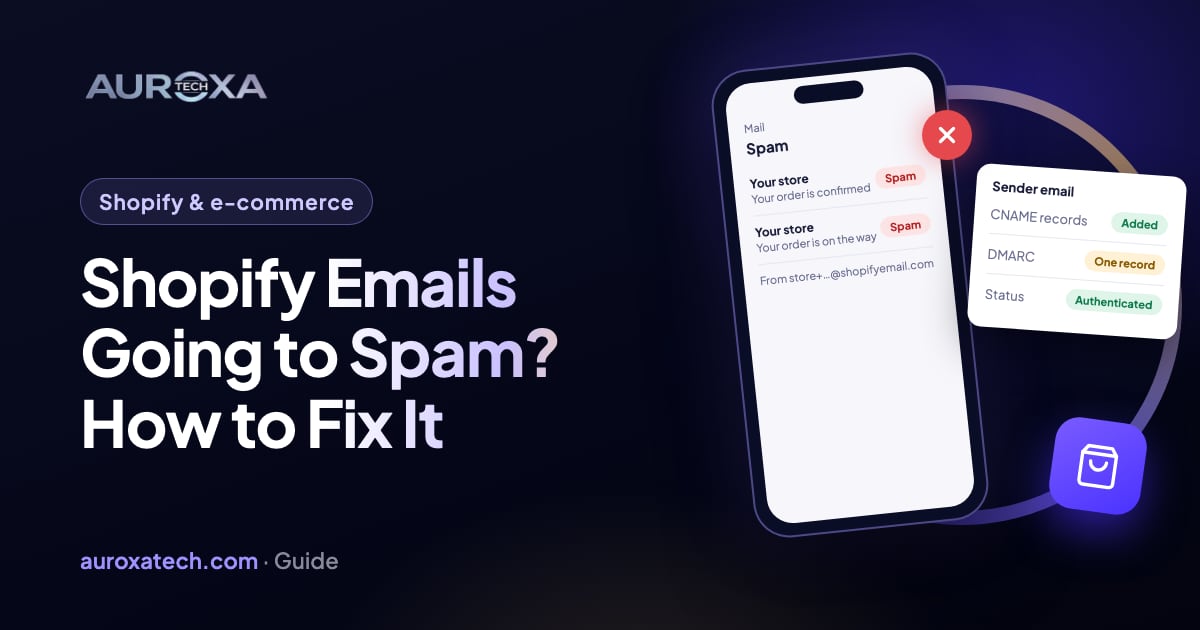
Shopify order confirmations usually land in spam, or get sent from a strange store+123@shopifyemail.com address, because the sender email’s domain isn’t authenticated. Since February 2024 Gmail and Yahoo require an authenticated domain and a DMARC record for branded senders, and Shopify rewrites the sender when they are missing. The order that works: check the sender email and its authentication status in Settings, then Notifications, add every CNAME record Shopify shows, add one DMARC record, wait for the status to read Authenticated, check a real email’s headers in Gmail, then resend the confirmations customers missed. Authentication removes the most common cause; it can’t guarantee the inbox, and Shopify has no report of every email that failed.
Why Shopify emails end up in spam
The question comes up on the Shopify Community every few weeks. In a December 2025 thread, a merchant described order confirmations, shipping updates and abandoned cart reminders landing in spam or not showing up at all, with customers assuming their order hadn’t gone through. The first reply was short: the email hasn’t been authenticated. That is the right place to start, because it is the cause Shopify itself documents.
Shopify’s help page on setting up your email explains that the Sender email in Settings, then Notifications, is the From address on order confirmations, notifications and marketing emails. Shopify sends those emails from its own servers, but they say they come from your domain. Mailbox providers check whether your domain allows that. The page says that as of 1 February 2024, Gmail and Yahoo require you to authenticate your domain and have a DMARC record to send from a branded address. If you don’t, Shopify rewrites your sender to an address like store+123@shopifyemail.com so emails still go out.
Google’s email sender guidelines say the same from the receiving side: every sender needs SPF or DKIM, bulk senders need SPF, DKIM and DMARC, and messages that aren’t authenticated “might be marked as spam or rejected with a 5.7.26 error.” For DMARC to pass, the domain that passes SPF or DKIM must match the domain in the From header. So a store whose sender is info@yourstore.com, with no Shopify records on yourstore.com, is asking Gmail to trust mail it can’t verify.
| What you see | Likely cause | Fix (step n) |
|---|---|---|
| Customers get emails from store+…@shopifyemail.com | Sender domain not authenticated or no DMARC record | Authenticate the domain and add DMARC (steps 2 to 4) |
| Order confirmations in spam at Gmail or Yahoo | Missing or incomplete CNAME records, or no DMARC | Check the status and add the missing records (steps 2 and 3) |
| Status says “Update recommended” | Newer CNAME records exist or one doesn’t match | Add or correct the records Shopify lists (step 3) |
| Authentication passes but some emails still land in spam | Content, sending reputation or one provider’s filters | Check headers, then content and complaints (steps 5 and 7) |
| Order timeline says the email wasn’t sent | Bad address or a provider that refused the mail | Fix the address, resend, contact support (steps 6 and 8) |
| Sender is a gmail.com or similar free address | You can’t authenticate a domain you don’t own | Use an address on your own domain (step 1) |
Before you change anything
- Find one real example. Ask a customer who didn’t get a confirmation for the order number and which email provider they use. One concrete case beats a vague “emails go to spam.”
- Place a test order to yourself. Use a Gmail address and, if you can, an Outlook or Yahoo one. Note where each email lands and what the From address says.
- Know who manages your domain. If the domain was bought through Shopify, the records are managed for you. If it was bought elsewhere, you need the login for that provider (GoDaddy, Cloudflare, Namecheap and so on) to add records.
- Don’t delete existing DNS records. Your domain may already carry records for your inbox provider, your website or another sending tool. You will add records, and edit at most the DMARC one.
- Write down today’s sender email and status. You need the before state to tell whether anything changed.
How to fix it, step by step
Step 1: Check the sender email
In the Shopify admin, open Settings, then Notifications, and look at the Sender email section. It should be an address on your own domain, such as orders@yourstore.com. If it is a free mailbox address, you can’t authenticate that domain because you don’t own it, so Shopify will likely keep rewriting it; switch to an address on your domain. If you don’t host email for that domain, Shopify says you can use a forwarding address from a Shopify-managed domain. Shopify also warns that some email hosts reject addresses containing “no-reply”, “do-not-reply” or “noreply”, so avoid those words.
Step 2: Open Email domain authentication
In the same Sender email section, click Email domain authentication and read the status. Authenticated means the records are in place and you can skip to step 4 to check DMARC. Update recommended means newer records are available or one doesn’t match; your domain is still authenticated, but Shopify says that without the new records your emails might temporarily be sent from the shopifyemail.com address during a delivery disruption. No authentication at all means Shopify is rewriting your sender, which is the most likely reason customers see the odd address.
If your domain was purchased through Shopify, the help page says DKIM, SPF and DMARC are configured for you. If the status stays on Update recommended for a Shopify-managed domain, Shopify’s instruction is to contact Shopify Support rather than edit anything yourself.
Step 3: Add the CNAME records Shopify shows
For a domain hosted on Cloudflare, GoDaddy or IONOS, Shopify offers Authenticate automatically: approve the change at the provider, then click the button that returns you to Shopify, such as Return to Shopify. If you close the provider’s window without returning, the check doesn’t start; in that case click Manual setup, then I updated DNS records.
For any other provider, choose manual setup and copy every CNAME record shown into your domain’s DNS settings. The number of records varies, and Shopify says you must add all of them. These CNAME records handle both DKIM and SPF for your sender address, so you don’t need a separate SPF TXT record for Shopify and you don’t add any IP addresses. When you are done, click I updated DNS records. Changes can take up to 48 hours. If the records aren’t found within about a day, the status goes back to Update recommended; compare each value character by character, because a provider that adds your domain to the end of the host name automatically is a common cause of a mismatch. One more limit from the help page: CNAME records can’t be added for dev stores, client transfer stores or stores on the Pause and Build plan.
Step 4: Add one DMARC record
Automatic authentication doesn’t create a DMARC record, so check for one even after step 3. At your domain provider, add a TXT record with the name _dmarc and the value v=DMARC1; p=none; which is the default Shopify documents. The rule that catches people out: your domain must have only one DMARC record. Shopify says that multiple DMARC records make validation fail and your sender may be rewritten again. If one already exists, for example from Google Workspace or Microsoft 365, keep it and don’t add a second.
A stricter policy, such as p=quarantine, tells receivers to treat failing mail more harshly. A Shopify Partner in the December 2025 thread said Gmail requires at least p=quarantine (community claim). That conflicts with Shopify’s documented p=none default and with Google’s guidelines, which ask for a DMARC record without naming a stricter policy for this case, so treat a stricter policy as an option to add later, once you know every service that sends mail for your domain passes.
Step 5: Check a real email’s headers
Once the status reads Authenticated, place another test order to a Gmail address. Open the confirmation, then use More, then Show original, as Gmail’s page on tracing an email with its full header describes. The top of that view shows the SPF, DKIM and DMARC results. You want DMARC to pass with your own domain. You can also copy the header and paste it into Google Admin Toolbox Messageheader for a readable version. If DMARC fails while SPF passes, the passing domain doesn’t match your From address, which usually means a record from step 3 is missing.
Step 6: Resend the confirmations customers missed
Shopify’s page on managing order details gives the steps: open Orders, click the order, find the Timeline section, click Resend email under the email you want to send again, choose to send it to the customer or to yourself, then click Send. Check the email address on the order first; a typo there explains some “never arrived” complaints, and it has to be corrected before you resend.
There is no screen that lists every failed email. In a Shopify Community thread from 2024, a merchant found a timeline note saying a confirmation wasn’t sent because the “email address does not exist”, for a customer whose cox.net address still received their Mailchimp campaigns. Shopify staff replied that the admin has no view of all failed order confirmations and suggested checking each order’s timeline, resending, and contacting support (community thread; the issue was not resolved in it).
Step 7: If it still lands in spam, look at what you send
Authentication is the entry ticket, not the whole decision. In a May 2025 thread, a merchant with an authenticated Shopify-hosted domain and DMARC in place still saw spam placement; replies pointed to content and sending reputation (community advice, no confirmed fix). Google’s guidelines say frequent spam reports lower a domain’s reputation over time and that Postmaster Tools shows your spam rate. For a store, that means a few practical checks: marketing emails go only to people who opted in, every marketing email has a working unsubscribe link, the order confirmation template isn’t loaded with promotions and large images, and the subject lines match what is inside. If only one provider files you as spam while others deliver, the problem suggests that provider’s filters or your reputation with it, and the steps above plus time are what move it.
Step 8: Ask for help with the right evidence
If confirmations still fail after the records pass, contact Shopify Support with the order numbers, the exact timeline messages, the recipient providers and the header from step 5. Ask customers who rely on the emails to add your sender address to their contacts; it doesn’t fix the cause, but the community threads show it helps individual customers while you work on it.
What these steps can’t do
- They can’t guarantee the inbox. Gmail, Yahoo and Outlook decide placement, and Google’s page frames authenticated mail as less likely, not never, to be marked spam.
- They can’t show you every email that failed. Shopify has no such report; you check order timelines one by one.
- They can’t authenticate a domain you don’t control. A free mailbox address as the sender will keep being rewritten.
- They won’t fix emails sent by other tools. An email app, a review app or your own inbox sends through its own servers and needs its own records on the same domain.
If customers say they never got an email from your website rather than from the store, the cause is often the same family of problems; the contact form not sending emails guide covers the From address and SMTP side. Before you spend on ads, a quick Shopify checkout test confirms the confirmation email arrives at the end of a real order.
Our Shopify and e-commerce team sets up sender domains, DNS records and notification templates as part of store builds and fixes. If your confirmations keep landing in spam after these steps, send us the store URL and one order number that failed.
Frequently asked questions
Why do my Shopify order confirmations go to spam?
Usually because the sender email’s domain isn’t authenticated. Shopify sends the email on your behalf, and Gmail and Yahoo require an authenticated domain and a DMARC record for branded senders. Add the CNAME records Shopify shows in Settings, then Notifications, and one DMARC record, then test again.
Why are customers getting emails from store+123@shopifyemail.com?
Shopify rewrites your sender to that address when your domain isn’t authenticated or has no valid DMARC record, so emails keep going out. Authenticate the domain in the Sender email section and check that it has exactly one DMARC record; the sender switches back once the status reads Authenticated.
Do I need an SPF record for Shopify?
Not a separate one for your sender address. Shopify’s help page says the CNAME records you add during domain authentication handle SPF and DKIM. You still need a DMARC record, which automatic setup doesn’t add.
How long does Shopify email authentication take?
Shopify says DNS changes can take up to 48 hours. If the records aren’t found within about a day, the status returns to Update recommended, and you should check each value against the admin and click I updated DNS records again.
Can I see which Shopify emails failed to deliver?
Not in one place. Shopify staff have confirmed there is no admin report of failed order confirmations. Check the Timeline on each order for notes such as “email wasn’t sent”, fix the address if needed, and use Resend email.
Sources
- Shopify Help Center: Setting up your email (sender email, CNAME and DMARC records)
- Shopify Help Center: Viewing and managing order details (resend an order email)
- Gmail Help: Email sender guidelines
- Gmail Help: Trace an email with its full header
- Shopify Community (community): Why Shopify emails end up in spam (Dec 2025)
- Shopify Community (community): URGENT! Emails going to customers spam (May 2025)
- Shopify Community (community): Is there a place to find emails that weren’t delivered? (2024–2025)