
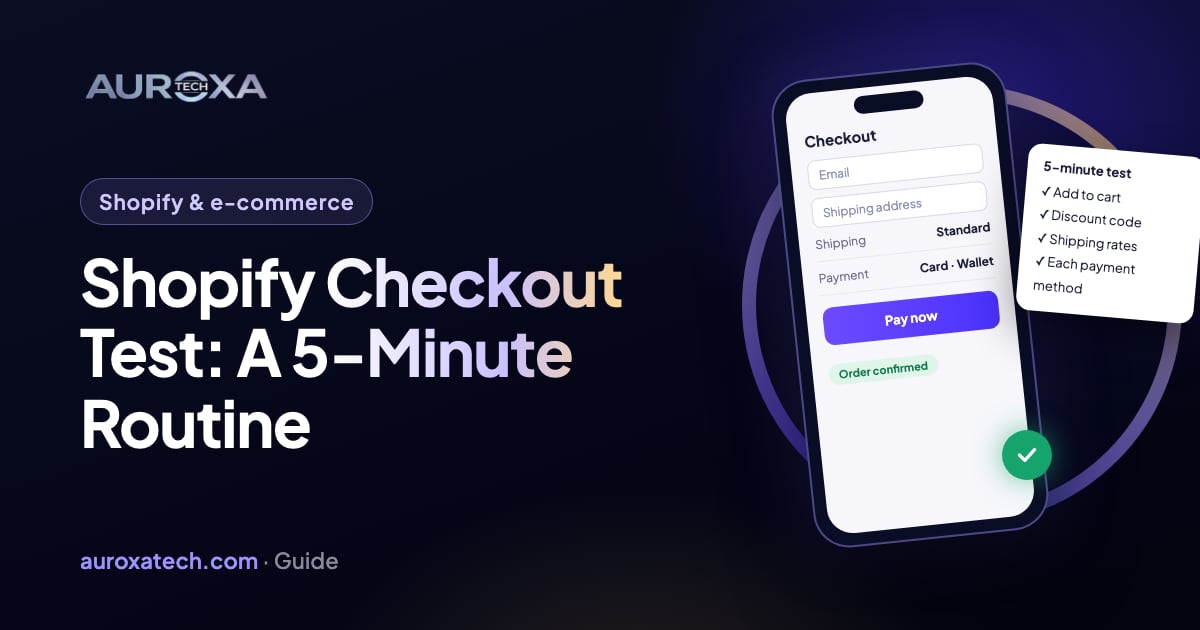
A Shopify checkout test is one order placed the way a customer would: add to cart on a phone, open the cart, apply a discount, get shipping rates for your main market, pay, then check the confirmation email and the order in your admin. On a store that isn’t live yet, Shopify’s Test payment gateway or Shopify Payments test mode lets you do this without paying. On a live store, Shopify advises against test mode, so place a small real order and refund it.
Why test the checkout before spending on ads?
Ads buy visits. If one step between the product page and the thank-you page fails, every visit that reaches it is wasted, and the ad report only tells you that nobody bought. Checkouts also break quietly: an app install, a theme update, a new shipping zone or a payment setting can stop orders without an obvious error in your admin. Our guide to Shopify traffic but no sales ends with “test the checkout yourself”; this is that step written out as a routine you can repeat.
If the problem is earlier, with clicks that never add to cart, start with our guide to ad clicks but no add to cart instead. The routine below assumes people can reach your product page and want to buy.
How do I pay for a test order?
Shopify gives you three ways, and the right one depends on whether your store is live. Shopify notes that customers can’t place live credit card orders while a payment provider is in test mode, and it says you shouldn’t turn on Shopify Payments test mode on a store that’s in production.
| Your store | How to pay | Watch out for |
|---|---|---|
| Not launched yet | Shopify’s Test payment gateway: name on card “Test payment gateway”, card number 1 for approved, 2 for declined, 3 for a gateway failure, any future expiry date and any 3-digit CVV | You must deactivate your card provider first; the order must be worth more than the equivalent of $1 USD |
| Not launched yet, using Shopify Payments | Shopify Payments test mode with Shopify’s published test cards | PayPal Wallet isn’t available in test mode; turn test mode off before launch |
| Live | A real order on a low-priced product, then cancel and refund it straight away | Some provider and card fees aren’t returned with the refund |
| Live, with a third-party provider | A real order; check the payment in the provider’s own dashboard, then refund | Orders through providers other than Shopify Payments aren’t treated as test orders and can’t be deleted |
| Cash on delivery or bank transfer | A real order | Manual payment methods don’t support test mode |
Before any test order, switch off any fulfillment service or app that fulfills orders automatically, as Shopify’s test order guide advises. Don’t fulfill test orders yourself either: Shopify warns you are charged for any shipping labels you buy.
The 5-minute core test
Do this on a phone, starting from a link like the one in your ad, not from your admin. Once you know the steps, one pass takes around five minutes.
- Add to cart. Open a product page, choose a variant and tap Add to cart. The item should appear in the cart drawer or cart page with the right variant and price.
- Cart. Change the quantity once and check that the total updates. Then tap through to checkout.
- Discount code. Enter a code you know is active. If there’s no discount field, Shopify says it only shows when at least one active discount code is available; Shop Pay users have to log in to Shop Pay before it appears.
- Shipping. Enter a real address in your main market. Rates should appear at the prices your product pages and policies promise. Start a new checkout for each test: Shopify says an abandoned checkout keeps the rates from when it was created.
- Payment. Pay with the method from the table above.
- Thank-you page and admin. Note the order number, then find the order under Orders in your admin. With Shopify Payments test mode, a test mode banner on the order confirms no real payment was captured.
- Confirmation email. It should reach the inbox of the email address you used, from your store’s sender address. Shopify uses that address as the From address on order confirmations, and if it’s on your own domain, says to authenticate it so messages aren’t flagged as spam.
- Clean up. Cancel and refund a real test order. Turn test mode off if you used it.
The full pass: what to add after a change
After an app install, a theme update or a payment or shipping change, extend the test. It takes longer, but each item covers a different way a checkout can fail:
- Desktop as well as phone. A sticky button, cart drawer or pop-up can work on one and block the other.
- Add to cart from a collection page if your theme has quick add, not only from the product page.
- Each payment method you offer: cards, Shop Pay, PayPal, Apple Pay and Google Pay. In Shopify Payments test mode you can test Shop Pay by adding a test card whose nickname starts with “test_card”, and Apple Pay or Google Pay may still complete with no real charge. PayPal Wallet needs a real order.
- A declined card (number 2 on the Test payment gateway) to see that the error message is clear.
- Shipping to each main region, and one address you don’t ship to, so you see what that shopper sees.
- A browser with an ad blocker or privacy extension. Shopify notes these can block payment scripts.
- The purchase in your analytics and ad platform. Run the pixel test from our add-to-cart guide again, this time through to the thank-you page.
A Shopify store audit includes this full pass on phone and desktop, with a test order on each payment method.
Printable checklist: pass or fail?
| Step | Pass looks like | If it fails |
|---|---|---|
| Add to cart | The item appears in the drawer or cart page with the right variant | See our guide to a cart drawer that opens empty; switch off app embeds one at a time |
| Cart | Quantity changes update the total; no surprise price | Check apps that change prices or the cart, then the theme |
| Discount code | The code applies and the total drops by the right amount | Check the code is active, hasn’t passed its end time, covers the products in the cart and can combine with other discounts; Shopify says apps that change pricing or checkout can hide the field |
| Shipping rates | Rates show for each main region at the advertised price | Check the country is in a market with rates, products have a shipping weight and aren’t marked digital |
| Payment | Each method completes; a declined card shows a clear error | If only one method fails, Shopify says the issue is likely with that provider; contact them |
| Order in admin | The order shows under Orders with the right items, shipping and tax | Check payment settings, then contact Shopify Support with the checkout details |
| Confirmation email | Arrives in the inbox from your store’s address | Authenticate your sender email in Settings > Notifications |
| Purchase tracking | The purchase shows in the Pixel Helper and the ad platform | Test the pixel in Settings > Customer events |
| Clean up | Test mode off; real test orders refunded; nothing fulfilled | Turn test mode off before any campaign starts |
If shipping rates are missing, Shopify’s shipping rate troubleshooting page lists the error a shopper sees: “Shipping not available. Your order cannot be shipped to the selected address.” For payment errors, start with Shopify’s checkout payment troubleshooting page.
When should I run the test again?
- Before every campaign, and before you raise the budget on one that’s running.
- After you install, update or remove an app that touches the cart, discounts, shipping or checkout.
- After a theme update, a switch to a new theme or edits to theme code.
- After changing payment providers, shipping zones or rates, markets, taxes or your sender email.
- Once a month even with no changes, as a quick phone-only pass.
Want someone to run it for you? Send your store URL for a free website audit. For stores, we look at product pages, the cart and checkout, and the apps loaded on each page. Our Shopify store audit adds test orders on each payment method, on phone and desktop.
Frequently asked questions
How do I place a test order on Shopify without paying?
Use Shopify’s Test payment gateway or Shopify Payments test mode. For the gateway, deactivate your card provider in Settings > Payments, activate Test payment gateway and pay with card number 1 for an approved order. Both suit stores that aren’t live yet, because customers can’t place live card orders while test mode is on. On a live store, place a small real order and refund it.
Do I need to test on mobile separately?
Yes. Themes often show a different layout on phones, with cart drawers, sticky buttons and pop-ups that can block a step on one device and not the other. Run the core test on a phone every time, starting from a link like the one in your ad, and add a desktop pass after any app, theme or checkout change.
How often should I test my checkout?
Before every campaign or budget increase, and after any change that touches the cart or checkout: installing or removing an app, updating or switching themes, or changing payment, shipping, tax or market settings. With no changes, a monthly phone-only pass catches problems that start outside your store. It costs little next to a day of ads sent to a broken checkout.
Sources
- Shopify Help Center: activating a payment provider in test mode (Test payment gateway)
- Shopify Help Center: testing Shopify Payments
- Shopify Help Center: processing a test order with a real transaction
- Shopify Help Center: troubleshooting checkout payment issues
- Shopify Help Center: troubleshooting shipping rates
- Shopify Help Center: discounts FAQ (discount field not showing)
- Shopify Help Center: setting up your sender email