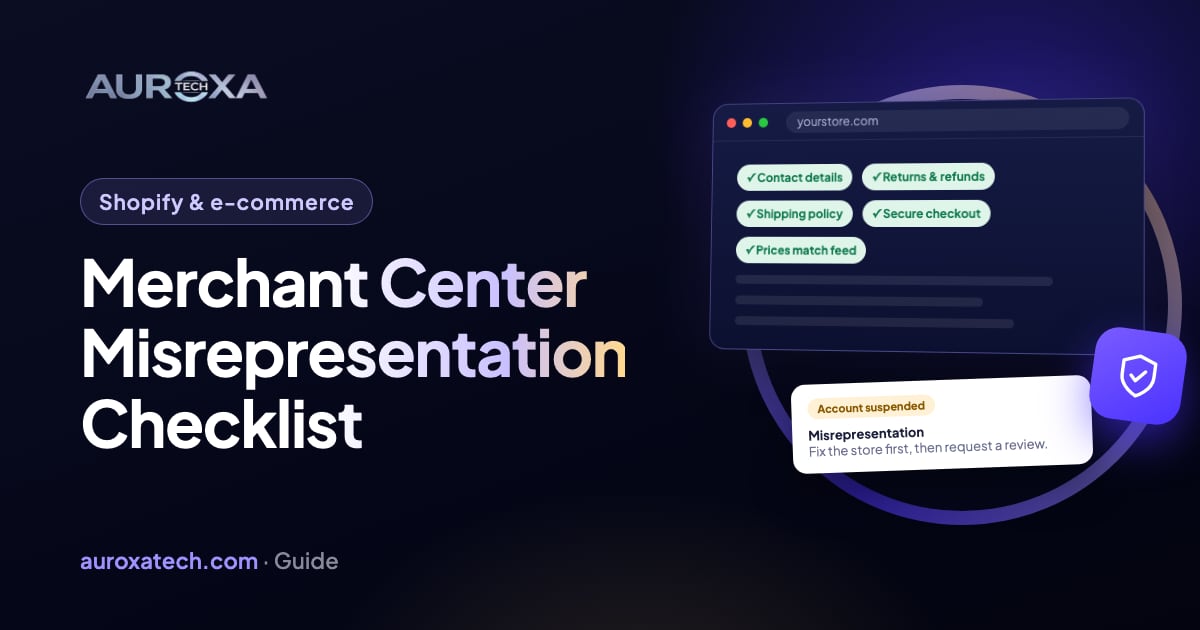
A Merchant Center misrepresentation suspension means Google found that your listings or store leave out or misstate something shoppers need to know: who you are, what an order really costs, where it ships from, or whether you can deliver it. Fix the whole store before you appeal: matching business details, visible contact information, clear shipping and returns policies, honest prices and claims, and no placeholder text or broken links. Review requests are limited, and failed ones can start a cool-down.
What does “misrepresentation” mean in Google Merchant Center?
Google’s Misrepresentation policy asks for listings that are clear and honest and give shoppers the information they need to make an informed decision. It rules out two things: offers that get a customer to commit to a purchase before they have all the relevant information, and offers that present you or your products in a way that isn’t accurate, realistic and truthful.
The policy has several parts. These are the ones that most often apply to an online store, with Google’s own examples:
| Part of the policy | Google’s examples | What it means on your store |
|---|---|---|
| Unacceptable business practices | A false identity, business name or contact information; a false or virtual address shown as headquarters while operating from an undisclosed region; hiding where products ship from; refusing returns despite a clear returns policy | Your About page, contact page, footer and policies tell the truth about who runs the store and where orders come from |
| Dishonest pricing and transaction conditions | Not disclosing the total price with taxes and fees; not disclosing shipping costs, including for returns; bait-and-switch pricing; a prominent delivery time that hides a longer processing time | The shopper sees the full cost and the real delivery time before paying |
| Unavailable offers | Listing items as available when you can’t fulfill the orders; misrepresenting where products ship from | Stock, delivery promises and promotions you can actually honor |
| Unreliable claims | Inaccurate claims, or claims that promise an improbable result, such as “miracle cures” | Product copy you can back up |
Google treats several parts as egregious. For those, the policy says accounts are suspended upon detection without prior warning and are only reinstated in compelling circumstances. For unavailable offers and unreliable claims, Google issues a warning at least 7 days before any suspension. Google also says it may review information from multiple sources, including your listing, website, accounts and third-party sources, so the fix is rarely one product or one page.
Expect the notice to be vague. In a Shopify Community thread from 2026, a store owner who had already worked through the general checklist still couldn’t find out which page triggered the flag, and ran into repeated cool-downs. That is why the audit below covers the whole store, not just the products Google mentions.
Before you appeal: check the whole store
Google’s guide to fixing warnings and suspensions lists the audit to run for misrepresentation: consistent business information, linked policies, no placeholder text or broken links, a working checkout secured with HTTPS, and completed identity verification. Here is how that maps to a Shopify store. A Shopify store audit covers the same points, because what worries Google tends to worry shoppers too.
Who you are
- The same business details everywhere. Google says your legal business name, physical address, phone number and email must be consistent across your website and Merchant Center account. Check the footer, contact page and policies, and in Merchant Center, Settings > Business info.
- Contact details visible before checkout. Google’s fix for missing contact information asks for at least a business address, phone number, email, contact form or social media business profile on the store, easy to see before checkout, and a verified phone number in Merchant Center.
- An honest address. Don’t present a showroom or headquarters you don’t have. If you also have a Google Business Profile, we check in an audit that it tells the same story as the store.
- Claims of affiliation you can prove. The policy doesn’t allow falsely implying a connection with, or endorsement by, another brand or organization. Remove words like “official” or “authorized” unless the relationship is real.
- Identity verification completed in Merchant Center, with clear documents that match your account data.
What an order costs and when it arrives
- A shipping policy with costs and realistic delivery times, including processing time. If you dropship or print on demand, say how long orders take to make and ship, and don’t hide where they ship from.
- A returns and refund policy that says how long customers have, how to send an item back, who pays return shipping and how refunds work, and that you follow in practice.
- Taxes, fees and shipping costs that the shopper can see before committing to buy.
- Prices, sale prices and stock on each product page that match the product data Google has for that item.
Whether the store works
- No placeholder text or sample content left over from the theme, such as demo reviews or “your text here” blocks.
- No broken links in menus, the footer or the policies.
- A checkout that works and is served over HTTPS. Place a test order to be sure; our 5-minute Shopify checkout test shows how.
- Shipping, refund and privacy policies linked clearly, for example from the footer of every page.
What you claim
- Product claims you can back up. Remove health, results or “cure” claims that you can’t support.
- Discounts that are real. A compare-at price the product never sold at, a countdown timer that restarts on every visit, or a “only 2 left” message that isn’t true gives a false impression of the offer, which is what the policy is about.
- Reviews from real customers only.
This work pays twice: the same trust gaps that worry Google also cost you orders. Our guide to Shopify traffic with no sales covers the trust checks from the shopper’s side.
Which Shopify settings feed Google?
- Settings > Policies. Shopify’s help on store policies covers refund, privacy, terms of service, shipping and contact information policies. Add them here, not as standalone pages under Online Store > Pages: policies added in Settings are automatically linked in the footer of your checkout pages. Shopify’s templates are a starting point, and Shopify says they aren’t legal advice.
- Settings > General > Store contact details. Shopify’s policy templates take your company name from here, so make sure it matches what Merchant Center has.
- The Google & YouTube channel. Shopify’s setup guide requires at least one contact method on the store (phone, email, mailing address or contact form) and asks you to tick a box to confirm it. It warns that if you confirm requirements that aren’t actually met, Google can suspend your Merchant Center account.
- Product sync. Products sync to Google automatically. Shopify says the first sync can take up to 24 hours and later changes usually sync within a few hours, so let your fixes reach Google before you request a review.
Shopify says the channel is managed by Google, so suspensions and reviews go to Google, not Shopify Support. If the policies, theme or product pages need real rebuilding, that is work our Shopify and e-commerce team does.
How do I request a review in Merchant Center?
Request a review only when every fix is live. Each request counts.
- Fix every issue on the store and in your product data, and wait for the changes to sync.
- Complete identity verification. Google says this is often a required step before you can request a review for an account-level suspension.
- In Merchant Center, go to Products, open the Needs attention tab and select View setup and policy issues.
- Select I fixed the issue, or I disagree with the issue if you believe Google got it wrong, then select Request review. Google notes that you may only have one chance to disagree.
- Wait for the email. Google says a review may take up to 7 business days.
Keep a dated list of what you changed and where. If a review fails, you’ll know what you already tried and can explain your changes clearly.
Review limits and cool-downs
Google’s page on requesting a review sets the limits. During a warning period of 7 or 28 days you can request one courtesy review. Once an account is suspended, you get a limited number of review requests; if the issues aren’t resolved by the second attempt, a one-week cool-down may begin, during which the review button is disabled and the account stays suspended. The cool-down may grow with each unsuccessful review, and Google support can’t bypass or shorten it.
Reviews can run out. In a Shopify Community thread from August 2026, a store owner reports that Google support told them every appeal opportunity had been used and the suspension was final.
What should I avoid while the account is suspended?
- Opening a new Merchant Center account. Google’s Abuse of the network policy lists, under circumventing systems, trying to use Shopping again by creating new accounts after a suspension decision, and spreading violating listings across two or more accounts.
- Disguising problems instead of fixing them. The same policy lists bypassing enforcement by creating variations of listings, domains or content.
- Ticking setup boxes you haven’t earned in the Google & YouTube channel.
- Sharing your Google password. If someone helps you, give them their own access, which you can remove later.
- Rushing the review request. A failed request can start or extend a cool-down.
Want a second pair of eyes before you use a review? Our free website audit checks contact details, policies, pricing and checkout on your store, and a full Shopify store audit works through every point above. Only Google decides whether an account is reinstated, so we can’t promise that outcome.
Frequently asked questions
How long does a Merchant Center review take?
Google’s help says a review may take up to 7 business days, and its suspension guide says requests typically take 3 to 7 business days, with an email when the review is done. The clock starts only when you request the review. If it fails, a cool-down may begin before you can ask again, and Google support can’t shorten it, so the whole process can take weeks.
Can I create a new Merchant Center account?
Not to get around a suspension. Google’s Abuse of the network policy lists creating new accounts after a suspension decision as circumventing its systems, and also lists spreading violating listings across two or more accounts. A second account for the same store risks the same enforcement. Fix the original account, request a review through it, and contact Google support if you need help.
Does a Shopify store need a physical address?
On the store itself, Google asks for at least one contact method: a business address, phone number, email, contact form or social business profile, visible before checkout. Merchant Center also asks for your business details and a verified phone number. Whatever you show must be true: a virtual address shown as headquarters while operating from an undisclosed region is one of the policy’s examples. Shopify notes some legal disclosures require a physical address, so check your local rules.
Can Shopify Support fix a Merchant Center suspension?
No. Shopify says the Google & YouTube channel is managed by Google, and that for Merchant Center suspensions you need to contact Google directly. Shopify Support can help with installing the channel and setting up products. The store-side fixes, such as policies, contact details and product pages, are made in your Shopify admin by you or your developer.
Sources
- Google Merchant Center Help: Misrepresentation policy
- Google Merchant Center Help: Request a review of your issues
- Google Merchant Center Help: Fixing warnings and account suspensions for policy violations
- Google Merchant Center Help: Abuse of the network (circumventing systems)
- Google Merchant Center Help: Missing contact information on your online store
- Shopify Help Center: Store policies
- Shopify Help Center: Set up the Google & YouTube channel
- Shopify Community thread (example, not official guidance): misrepresentation suspension with repeated cool-downs
- Shopify Community thread (example, not official guidance): appeals exhausted after a misrepresentation suspension