
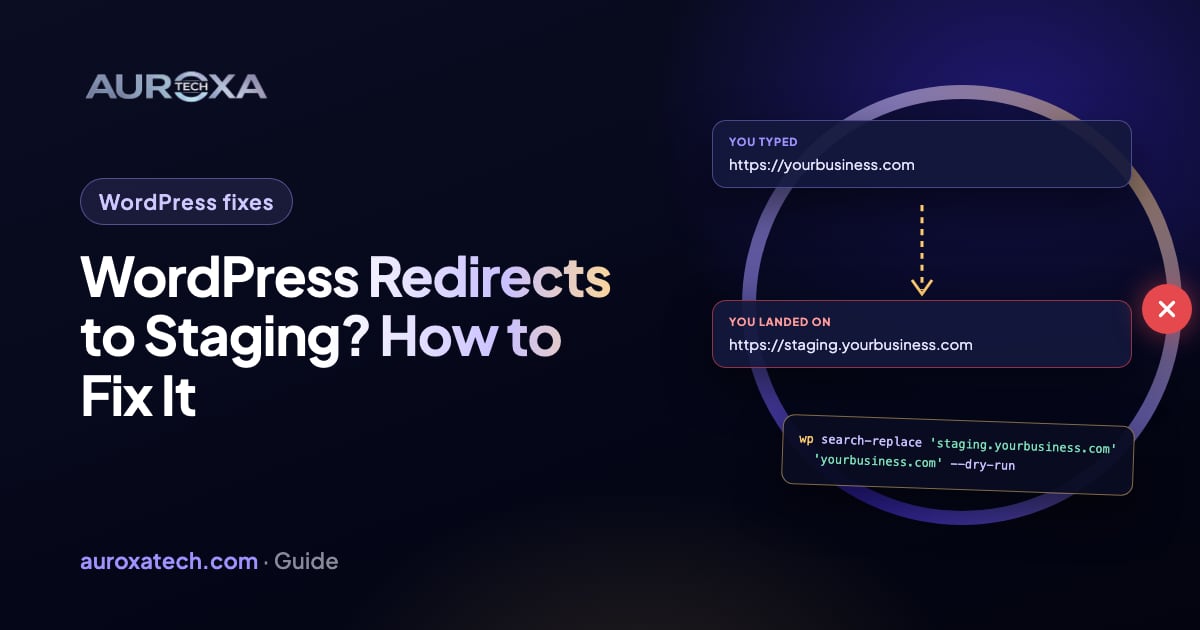
When a live WordPress site redirects to its staging address, the staging URL is still stored somewhere: usually in the home and siteurl settings in the database, or in WP_HOME and WP_SITEURL in wp-config.php, often after a staging push or a database copy. Back up, set both addresses to the live URL, replace leftover staging URLs with a serialization-safe tool such as wp search-replace, clear every cache, then check .htaccess, server rules and redirect plugins.
Why does my live site redirect to the staging site?
WordPress keeps two addresses under Settings > General: the WordPress Address (URL), stored as siteurl, and the Site Address (URL), stored as home. WordPress’s guide to changing the site URL explains that these settings control the URLs shown in the admin and on the front end, and are used throughout the WordPress code. When they hold the staging address, WordPress builds its links, its login page and its admin screens on staging, so visitors and logins end up there.
That usually happens when the staging database is copied over the live one, by a staging plugin, a host’s staging tool, a backup restore or a manual import, without changing the URLs inside it, or when staging’s wp-config.php is copied to the live server. Match what you see to the likely cause:
| Cause | How you can tell | Where to fix it |
|---|---|---|
| home and siteurl in the database still hold the staging URL | Every page and the login go to staging; Settings > General shows the staging address | Settings > General, wp-config.php or the database (steps 1–3) |
| WP_HOME and WP_SITEURL in wp-config.php point to staging | The two address fields in Settings > General can’t be edited | wp-config.php (step 2) |
| Staging URLs left in content and plugin settings | The site loads, but some links, images, menus or forms point to staging | A serialization-safe search and replace (step 4) |
| A cache or CDN still serving old pages | Fixed in the admin, but some visitors still get sent to staging | Every cache layer (step 5) |
| A redirect in .htaccess, the server or a plugin | Only some pages redirect, or the redirect happens before WordPress loads | .htaccess, your host’s server rules, redirect plugins (step 6) |
| A push or restore that stopped partway | A mix of live and staging content, or errors in the tool’s log | The tool’s log, then a fresh backup restore |
Both of the last two show up in community threads on the WordPress.org support forums. In one thread, only one page redirected to staging, and a forum moderator suggested checking for a redirect plugin, a URL setting in the page builder, the .htaccess file and the server’s nginx rules. In another, a restore of staging over live stopped when the hosting account ran out of disk space, and the live domain then loaded staging or sent people to the staging login.
If the site takes orders or bookings and you would rather not edit its files and database yourself, our WordPress and website fixes start with the same checks, made on a backup first.
Before you change anything
- Back up the live site’s files and database, even though it is broken, and keep a copy off the server. WordPress’s guide reminds you that SQL changes are permanent.
- Write down both exact addresses, including https:// and www or no www, such as https://staging.example.com and https://example.com. A search and replace needs them exactly.
- Test in a private browser window, so your own browser’s cache and cookies don’t hide whether a fix worked.
- Check the push or restore tool’s log for errors, and make sure the hosting account isn’t out of disk space before you try again.
How to fix it, step by step
Step 1: Check Settings > General, if you can log in
Log in at the live domain’s /wp-admin/ if it lets you stay there. In Settings > General, set both the WordPress Address (URL) and the Site Address (URL) to the live address. WordPress says both should include the https:// part and shouldn’t end with a slash. Save, then test in a private window. If WordPress won’t let you edit the two fields, the values are set in wp-config.php: go to step 2.
Step 2: Can’t log in? Set the address in wp-config.php
Connect over SFTP or your host’s file manager, download a copy of wp-config.php as a backup, then open it. First look for existing WP_HOME or WP_SITEURL lines that name the staging domain, and correct them. If there are none, add these two lines above the “That’s all, stop editing!” comment, with your live address:
- define( 'WP_HOME', 'https://example.com' );
- define( 'WP_SITEURL', 'https://example.com' );
According to WordPress’s wp-config.php documentation, these constants override the siteurl and home values in the wp_options table but don’t change them in the database, and the site reverts to the database values if the lines are ever removed. So treat this as a way back in, and fix the database too.
WordPress also documents a RELOCATE constant for moves. If you use it, remove it straight after: WordPress warns that leaving it in wp-config.php is insecure, because in some setups it lets an attacker change your site URL.
Step 3: Fix the values in the database
With WP-CLI, run wp option update home 'https://example.com' and wp option update siteurl 'https://example.com'. Without it, open phpMyAdmin, find the options table and edit the option_value of the siteurl and home rows. WordPress notes that the table may not be called wp_options: the wp_ prefix may be different if it was changed at install.
Step 4: Replace leftover staging URLs safely
Posts, menus, widgets and plugin settings can still contain the staging address. Don’t run a plain find and replace on the database. WordPress explains that some themes and widgets store values with the length of the URL recorded, a format called serialized data, and that changing the URL without updating the length breaks them. The wp search-replace command handles serialized data. Run it as a test first:
- wp search-replace 'https://staging.example.com' 'https://example.com' --skip-columns=guid --dry-run
- Read the report of what would change. Nothing is saved yet.
- Run the same command again without --dry-run.
- Repeat for any other form of the staging address you found, such as an http:// version.
By default the command only touches the tables WordPress has registered. --all-tables-with-prefix adds other tables with your prefix, for example a plugin’s own tables. Be careful with --all-tables, which changes every table in the database whatever its prefix, including those of any other site sharing the database. Skipping the guid column follows WordPress’s rule never to change post GUIDs, which feed readers use to recognize posts. Without WP-CLI, WordPress’s guide names Better Search Replace as a plugin that does the same from the dashboard.
Step 5: Clear every cache
Purge the caching plugin, your host’s server cache and any CDN. A cache can keep serving pages with staging links, or a saved redirect, after the database is fixed. Then test again in a private window.
Step 6: Check .htaccess, server rules and redirect plugins
If it still redirects, the rule lives outside the WordPress settings. WordPress’s guide says to back up .htaccess before editing it, calling that “not a recommendation but a requirement”, and to look for custom rewrites or redirects. Look for any Redirect or RewriteRule line that names the staging domain. Then check the redirect list in any redirect or SEO plugin and the site URL setting in your page builder. Sites on nginx keep redirects in the server configuration, which your host can check. Finally, open Settings > Permalinks and click Save Changes to rewrite the permalink rules.
Step 7: Test the whole site
Click through the home page, inner pages, the login, every form and any checkout. Search the home page’s source for the staging domain: links, images, the canonical tag and the sitemap should all use the live address.
How do I keep the staging site out of Google?
Google’s documentation gives two ways to keep a page out of its results: password protection or a noindex rule. Password protection, set up by your host, is the stronger choice for staging, because it also keeps people out. Google says a robots.txt file isn’t a mechanism for keeping a page out of Google, and warns that a page blocked by robots.txt can’t show Google its noindex rule, so it can still appear in results if other pages link to it.
In WordPress, the Discourage search engines from indexing this site box under Settings > Reading adds a noindex, nofollow robots meta tag to every page, and WordPress turns off its built-in sitemaps while it is ticked. That is useful on staging and harmful on live. Because the setting is saved in the database, a staging push can carry it to the live site. After any push, check the box is clear on live, and remove any password or noindex rule that came across. A forgotten staging noindex is one of the technical faults our guide to a website traffic drop tells you to rule out.
If staging pages are already in Google, add password protection or noindex first, then use the Removals tool in Search Console, which hides a URL only temporarily while the permanent block takes effect.
How do I push staging to live safely next time?
- Back up live first, files and database, check there is enough disk space, and read the push tool’s log afterwards.
- Keep a separate wp-config.php for each copy. Never copy staging’s wp-config.php to live. You can also mark staging with define( 'WP_ENVIRONMENT_TYPE', 'staging' ); so it is clear which copy is which.
- Decide what to push. A full database push replaces everything on live, including orders, form entries and comments added since staging was made. On a shop or booking site, push files and design changes, or plan a quiet window.
- Run a search and replace from the staging URL to the live URL, with a dry run first.
- Remove staging protections from live: clear Discourage search engines, and remove any password or noindex rule that came across.
- Clear caches and test the pages, forms and checkout that bring in leads or sales.
For a bigger launch, such as a redesign going live, our guide to website redesign vs rebuild covers the launch steps for keeping URLs and redirects in place.
What should I check in Search Console afterwards?
- URL Inspection on the home page and a few key pages: run the live test to confirm Google can reach the live version without a redirect, and check that the Google-selected canonical is the live URL.
- Sitemaps: open your sitemap and confirm every URL uses the live domain; Google asks for fully qualified, absolute URLs. Resubmit it if it changed.
- Performance: watch clicks and impressions over the next few weeks. If they fall, work through the checks in our traffic drop guide.
Site fixed but not sure what the push left behind? Request a free website audit: we check indexing, redirects and broken links and tell you what to fix first. If the live site is still sending people to staging, describe what is broken and we’ll reply with the likely cause and the next step.
Frequently asked questions
Why does my site keep redirecting after I changed the URL?
Usually because the address is set in more than one place. WP_HOME and WP_SITEURL in wp-config.php override the database, so a staging value there wins over Settings > General. If those are correct, the redirect is likely cached by a plugin, the host or a CDN, or set in .htaccess, the server configuration or a redirect plugin. Test each fix in a private browser window.
Will this hurt my Google rankings?
It can if it lasts or if Google indexes staging. Google’s redirect documentation says it treats a permanent redirect as a signal that the target should be the canonical URL, so a lasting permanent redirect to staging could lead Google to show staging addresses. A copied noindex setting can also drop live pages from results. Fix it quickly, block staging, then check URL Inspection and the Performance report. Nobody can promise how quickly rankings settle.
How do I stop Google indexing my staging site?
Password-protect it, which also keeps visitors out, or add a noindex rule, for example with Discourage search engines under Settings > Reading. Don’t rely on robots.txt alone: Google says a page blocked by robots.txt can’t show its noindex rule and can still appear in results. If staging pages are already indexed, block them first, then use the Removals tool in Search Console, which only hides URLs temporarily.
Can I just use find and replace in phpMyAdmin?
Not safely on the whole database. WordPress warns that some themes and widgets store values in serialized form with the length of the URL recorded, and a plain replace breaks them. Use wp search-replace, which handles serialized data, or a plugin such as Better Search Replace, and run a dry run first. Never change the guid column. Editing only the siteurl and home rows in phpMyAdmin is fine.
Sources
- WordPress Advanced Administration Handbook: Migrating WordPress (changing the site URL)
- WordPress Advanced Administration Handbook: Editing wp-config.php (WP_HOME and WP_SITEURL)
- WP-CLI Commands: wp search-replace
- Google Search Central: Block search indexing with noindex
- Google Search Central: Redirects and Google Search
- WordPress.org support forum: PROD URL redirects to staging (community thread)
- WordPress.org support forum: Website redirects to staging site and login after UpdraftPlus restore (community thread)